ConvoManager Documentation
ConvoManager is a free, robust desktop application designed specifically for exploring, viewing, and editing chat conversation datasets stored in JSONL format.
It is built for high-performance navigation and manual manipulation - ideal for curating SFT fine-tuning data for modern large language models (such as OpenAI, Anthropic, Gemini, Llama, Deepseek, Qwen, and others), or for inspecting synthetic chat conversations.
ConvoManager is developed by RedhotCoding.
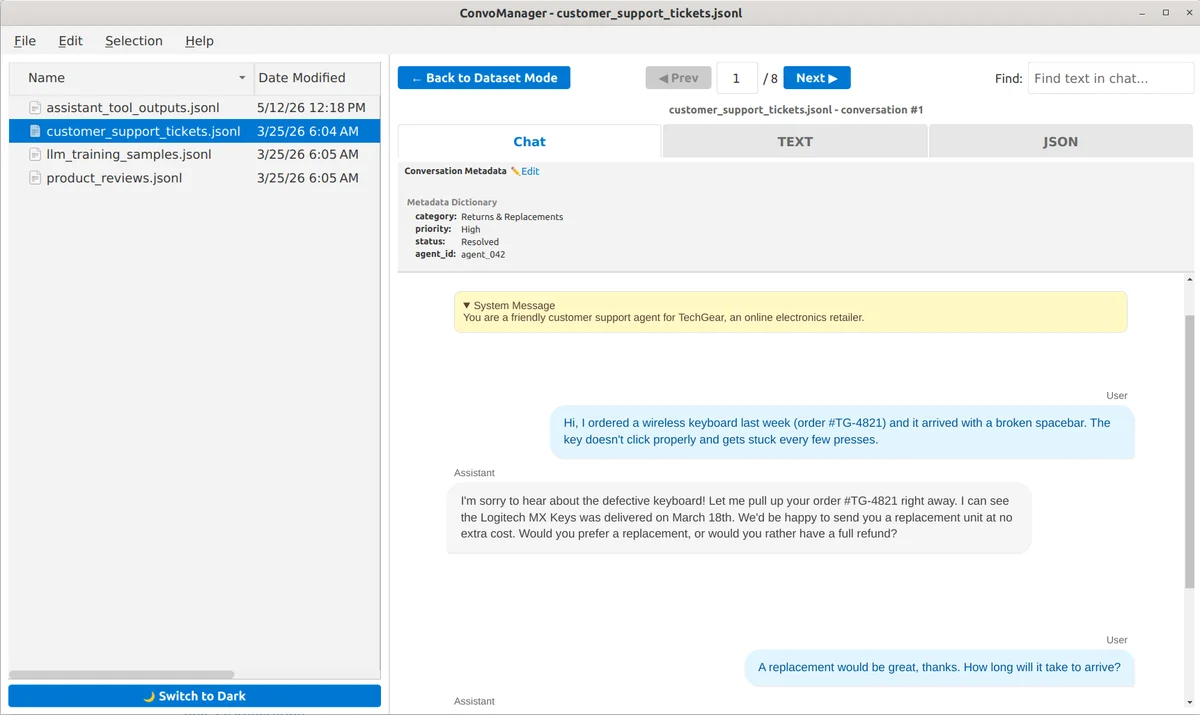
Table of Contents
- 1. Features
- 2. Supported Formats
- 3. The File Browser (Left Pane)
- 4. The Dataset Panel (Right Pane)
- 5. Settings, Updates & Maintenance
- 6. About
1. Features
- Intelligent schema detection: Automatically detects and parses all common conversation schemas, including standard OpenAI, Anthropic Claude, Google Gemini, Llama, Deepseek, Qwen, and others.
- Massive file support: Seamlessly open, navigate and edit
.jsonlfiles containing millions of lines without crashing or consuming excessive memory, thanks to byte-offset indexing and lazy-loading architecture. - Smart caching: Scanned dataset data is remembered and constantly updated by the application, enabling files to load significantly faster in subsequent sessions without re-scanning the file.
- JSON syntax issue detection and highlighting: ConvoManager can automatically scan every conversation for JSON validity, as well as validity of escaped JSON in message content. It can also highlight these issues separately in Dataset Table Mode.
- Dataset Mode or Single Conversation Mode: Switch between a table of all conversations in a dataset, where you can do bulk actions, or a single conversation mode where you can view and edit the contents and metadata of individual conversations.
- Three views for single conversations: Flawlessly switch between visual Chat Bubbles, a text editor (raw or pretty-printed), and an interactive JSON Tree editor for the same conversation.
- Dataset filtering: Instantly filter the entire dataset based on search keywords or the presence of issues (e.g. JSON syntax issues).
- Bulk actions: Select rows and use the Action Strip for bulk deletion and exporting of selected conversations. Or filter the dataset and export the filtered results from the menu.
- Dynamic metadata columns: Columns can be automatically extracted from embedded metadata or from the first message's JSON content.
- Role & turn counting customization: Customize role mappings (System, Assistant, and User) and configure custom turn-counting settings (counting of possible initial assistant messages and/or final unfinished turns) to support any custom schema on a per-file basis, ensuring accurate turn-counting.
2. Supported Formats
ConvoManager natively understands a wide range of LLM conversation schemas - without any configuration. It automatically detects the format of each conversation when the file is opened, and renders every message type with appropriate visual styling in the Chat View.
Whenever a conversation contains a thought process (model reasoning), a tool request (when the assistant wants to run a tool), or a tool response (when the tool returns data), ConvoManager automatically recognizes and visually displays these special message types.
2a. File Formats
ConvoManager reads JSONL (JSON Lines) files line-by-line. A comprehensive overview of supported formats and structures is covered below.
Standard Conversation Object
A standard conversation is represented by a JSON object containing a "messages" array, with each conversation residing on a single line of the JSONL file:
{
  "messages": [
    {"role": "system", "content": "You are a helpful assistant."},
    {"role": "user", "content": "Hello!"},
    {"role": "assistant", "content": "Hi there!"}
  ]
}
While a "messages" array is the standard OpenAI-compatible way to structure a conversation, ConvoManager also supports a variety of other conversation schemas and message structures natively. See the subsequent "Supported Formats" sections for full details.
Each conversation MUST reside on its own single line in the JSONL file, without any internal newlines or indentation.
On disk inside the JSONL file, the above conversation must look like this (residing entirely on a single line, with no indentation or newlines):
{"messages": [{"role": "system", "content": "You are a helpful assistant."}, {"role": "user", "content": "Hello!"}, {"role": "assistant", "content": "Hi there!"}]}
BUT: To make the examples throughout this documentation easy to read, they are shown pretty-printed with newlines, indentation, and without escaping of internal JSON strings (see "Embedding JSON in Text Strings" below).
Direct Message Array
The root of each JSON line can also be a bare array of messages without a parent object wrapper:
[
  {"role": "user", "content": "Hello!"},
  {"role": "assistant", "content": "Hi there!"}
]
Single Standalone Message
Each line of the JSONL file can also contain a single standalone message instead (without a conversation wrapper):
{"role": "user", "content": "Hello"}
Embedding JSON in Text Strings
When embedding raw JSON inside a message string value, you must properly escape internal quotes (\") so the outer JSON structure stays valid.
Incorrect (Breaks JSONL structure):
{"messages": [{"role": "assistant", "content": "Output: {"key": "value"}"}]}
Correct (Escaped for JSON string):
{"messages": [{"role": "assistant", "content": "Output: {\"key\": \"value\"}"}]}
JSON Object as Message Content
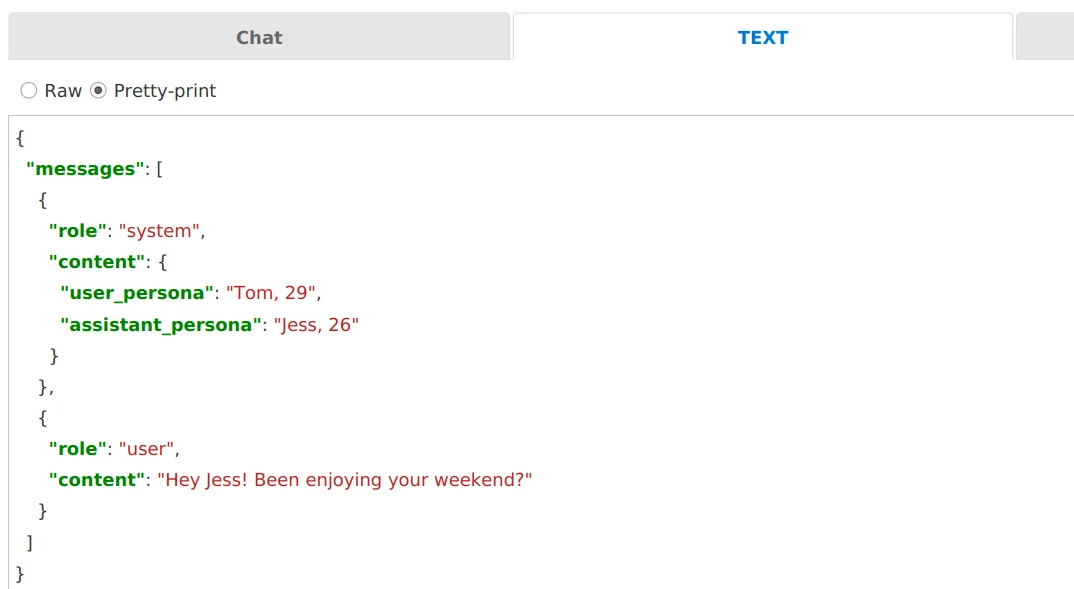
If a message's "content" field is a JSON object (a dict) rather than a string, ConvoManager automatically parses and renders it as a JSON table. This is common in system messages used to pass structured persona data or configuration:
{
  "messages": [
    {
      "role": "system",
      "content": {
        "user_persona": "Tom, 29",
        "assistant_persona": "Jess, 26"
      }
    },
    {
      "role": "user",
      "content": "Hey Jess! Been enjoying your weekend?"
    }
  ]
}
On disk inside the JSONL file, it must be on a single line:
{"messages": [{"role": "system", "content": "{\"user_persona\": \"Tom, 29\", \"assistant_persona\": \"Jess, 26\"}"}, {"role": "user", "content": "Hey Jess! Been enjoying your weekend?"}]}
In Chat View, the escaped json content shows as a table:

In (pretty-print) text view, it shows as proper json:
Broken Conversations (JSON Syntax Errors)
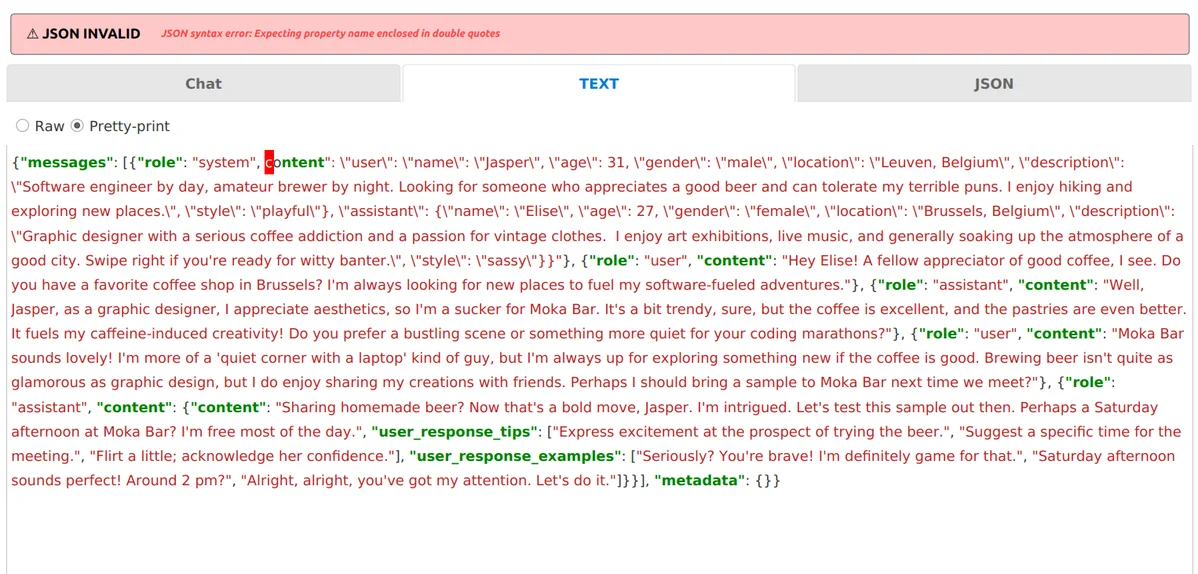
If a conversation contains JSON syntax errors, ConvoManager will display it in Text view ONLY (as raw unparsed text). The Chat and JSON tree views will remain disabled for that conversation until the syntax errors are resolved.
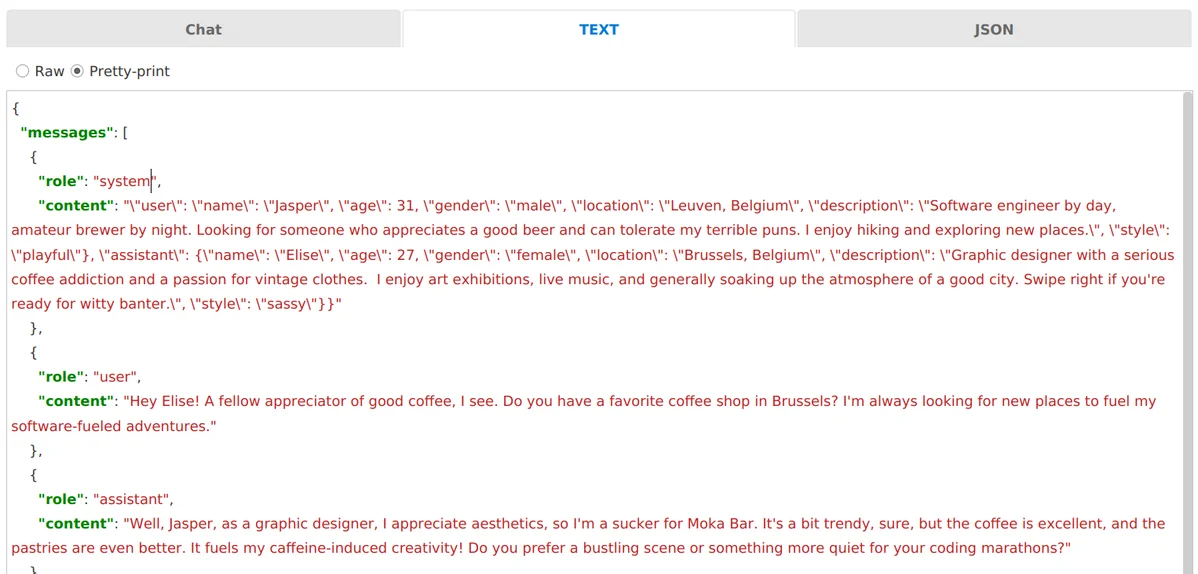
After fixing the json syntax issues, the editor re-formats to show the correct json content:
Broken JSON Strings (Inside Message Content)
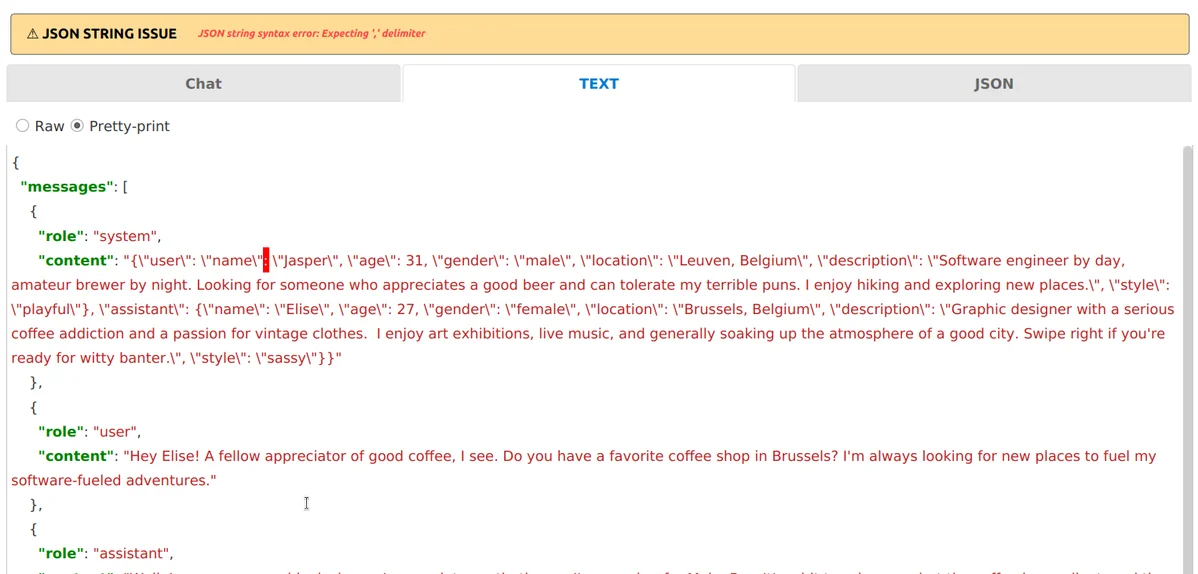
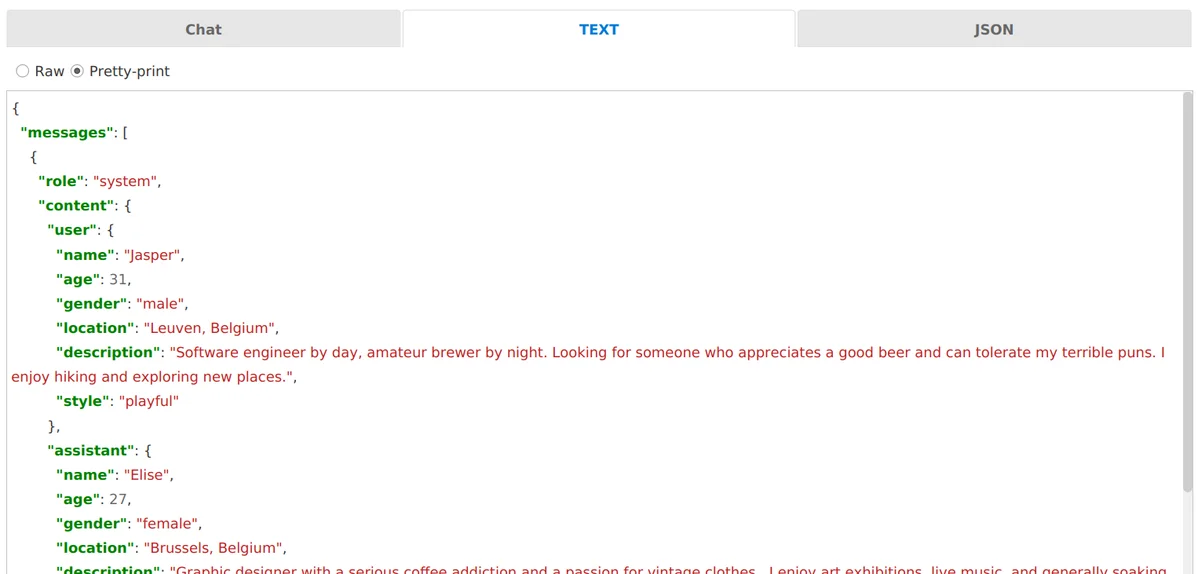
If the conversation itself is valid JSON, but the "content" of a message contains an embedded JSON string that has syntax errors, ConvoManager will still load the conversation normally. However, the issue will be highlighted and described in Chat View, Text View, and JSON View to help you easily locate and fix the escaping or formatting issue.
After fixing the json string syntax issues, the editor re-formats to show the correct json content:
2b. OpenAI-compatible formats
This is the most common format. It is used by OpenAI, Llama, Qwen, DeepSeek, and other compatible model families.
Basic Structure
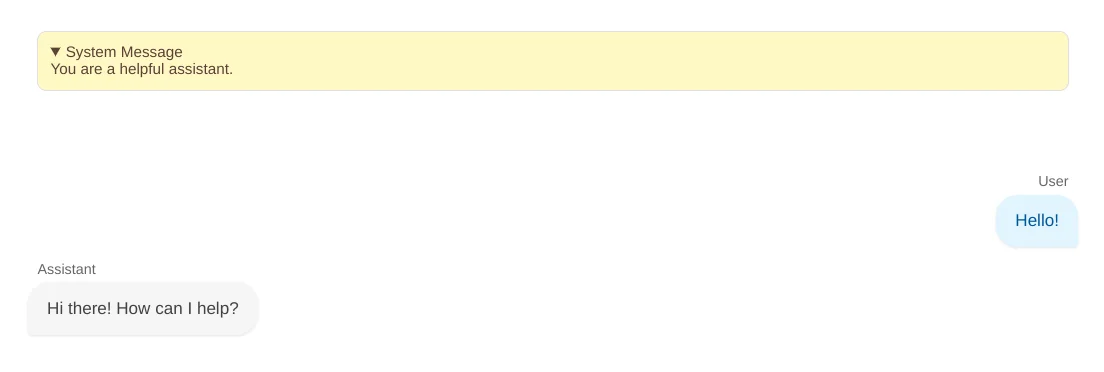
A conversation object has a "messages" key containing an array of messages, each with a "role" and "content". An optional "metadata" object can be added at the root level for per-conversation metadata:
{
  "messages": [
    {"role": "system", "content": "You are a helpful assistant."},
    {"role": "user", "content": "Hello!"},
    {"role": "assistant", "content": "Hi there! How can I help?"}
  ],
  "metadata": {"category": "greeting", "split": "train"}
}
In Chat View:
Chain-of-Thought Reasoning
ConvoManager supports all major chain-of-thought and reasoning formats used by OpenAI-compatible model families.
Dedicated Reasoning Field (reasoning_content or reasoning)
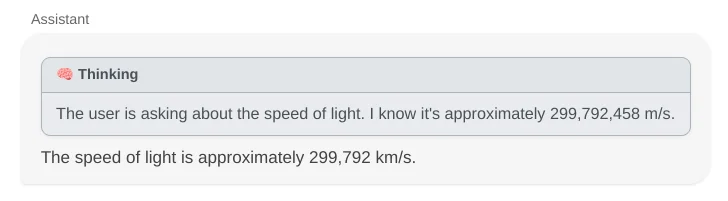
Used by DeepSeek R1, Qwen reasoning models (vLLM / official API), and standard dataset formats that store reasoning in a dedicated parameter separately from the final text content:
{
  "role": "assistant",
  "reasoning_content": "The user is asking about the speed of light. I know it's approximately 299,792,458 m/s.",
  "content": "The speed of light is approximately 299,792 km/s."
}
(Both reasoning_content and reasoning key names are automatically detected and extracted by ConvoManager).
In Chat View:
Inline reasoning tags (e.g. <think> or <thought>)
Used by DeepSeek-R1, Qwen, Llama fine-tunes, Gemma, and other model variants that output their thoughts inline as part of the text:
{
  "role": "assistant",
  "content": "<think>\nThe derivative of x^2 by the power rule is 2x.\n</think>\nThe derivative of x^2 is 2x."
}
In Chat View:
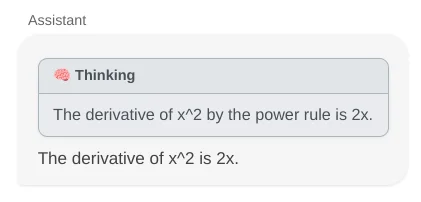
Both <think> (used by DeepSeek-R1, Qwen, and Llama community fine-tunes) and <thought> (used by Gemma models) tag names are supported interchangeably by ConvoManager.
Tool Calls, Function Calling & Execution Logs
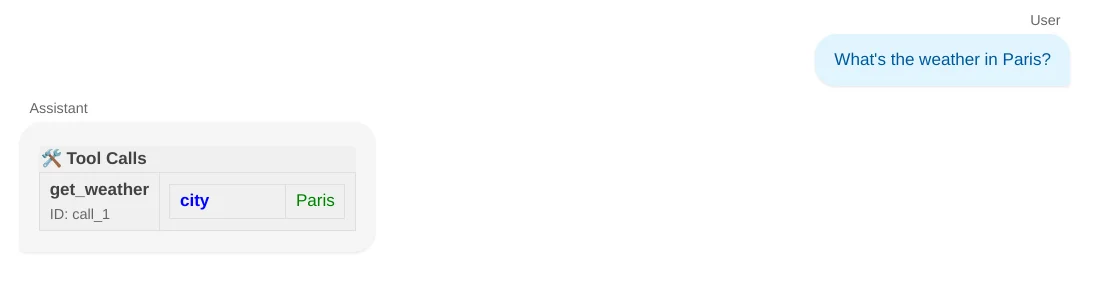
This format represents when models request to run tools and receive data back as an intermediate step.
Tool/Function Calls (tool_calls array)
{
  "messages": [
    {"role": "user", "content": "What's the weather in Paris?"},
    {
      "role": "assistant",
      "tool_calls": [{
        "id": "call_1",
        "type": "function",
        "function": {"name": "get_weather", "arguments": {"city": "Paris"}}
      }]
    }
  ],
  "tools": [
    {"type": "function", "function": {"name": "get_weather", "description": "Get weather for a city", "parameters": {}}}
  ]
}
In Chat View:
Tool Results (tool role)
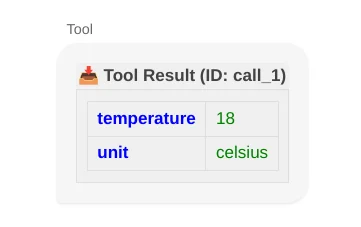
{
  "role": "tool",
  "tool_call_id": "call_1",
  "content": "{\"temperature\": 18, \"unit\": \"celsius\"}"
}
In Chat View:
Code Interpreter Outputs (ipython or environment role)
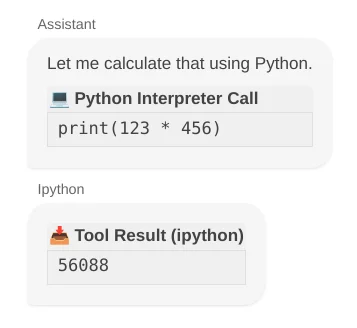
Used by Llama instruct models when running code via a built-in Python interpreter. When an assistant message contains the <|python_tag|> control tag, ConvoManager automatically extracts the tag and the accompanying Python code, presenting it as a dedicated code execution block separate from the assistant's conversational text.
The companion ipython or environment role message immediately following the assistant's request represents the console output returned from the Python environment and is rendered as a 📥 Tool Result (ipython) block:
{
  "messages": [
    {
      "role": "assistant",
      "content": "Let me calculate that using Python.\n<|python_tag|>\nprint(123 * 456)"
    },
    {
      "role": "ipython",
      "content": "56088\n"
    }
  ]
}
In Chat View:
2c. Anthropic Claude Format
Claude conversations use standard "role" and "content" fields.
Depending on the complexity of the turn, the "content" can be either a simple plain text string or an array of structured content blocks.
Each block in the array is a JSON object containing a "type" key that determines what kind of block it is (such as a text block, a reasoning block, or a tool block).
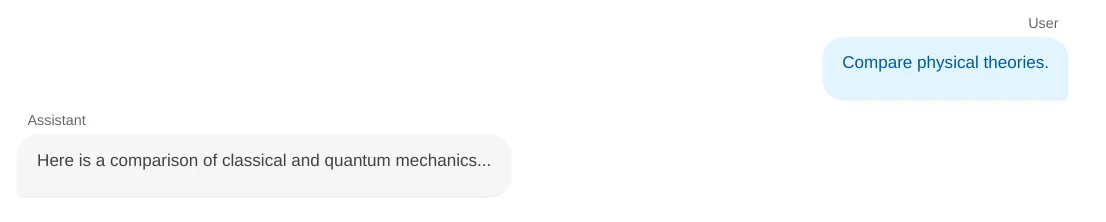
Basic Structure
{
  "messages": [
    {
      "role": "user",
      "content": [
        {
          "type": "text",
          "text": "Compare physical theories."
        }
      ]
    },
    {
      "role": "assistant",
      "content": [
        {
          "type": "text",
          "text": "Here is a comparison of classical and quantum mechanics..."
        }
      ]
    }
  ]
}
In Chat View:
Mixed-Content Messages
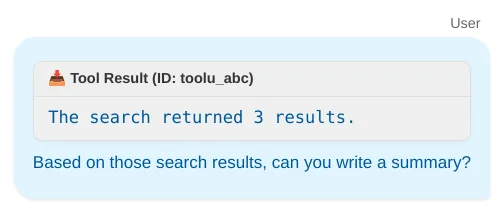
Anthropic Claude allows a single message to combine multiple block types in the same content array (e.g. a tool_result block and a text block together in a user message):
{
  "role": "user",
  "content": [
    {
      "type": "tool_result",
      "tool_use_id": "toolu_abc",
      "content": "The search returned 3 results."
    },
    {
      "type": "text",
      "text": "Based on those search results, can you write a summary?"
    }
  ]
}
In Chat View:
Chain-of-Thought Reasoning
Extended Thinking (thinking content block)
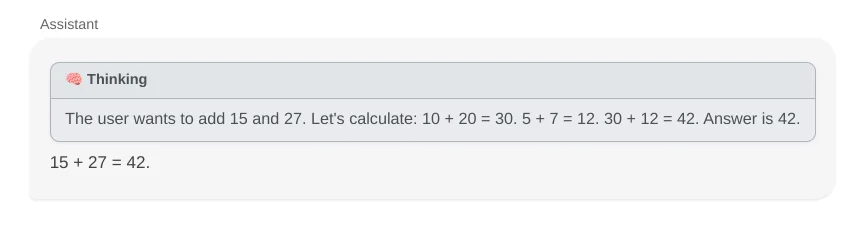
Used by Claude 3.5+ extended thinking datasets, where reasoning is a structured block inside the content array:
{
  "role": "assistant",
  "content": [
    {"type": "thinking", "thinking": "The user wants to add 15 and 27. Let me calculate: 15 + 27 = 42."},
    {"type": "text", "text": "15 + 27 = 42."}
  ]
}
Even though Claude datasets store thoughts in a separate "thinking" block object, ConvoManager visualizes them inside the chat bubble using a card-style 🧠 Thinking block to keep the styling consistent with other models and tool calls:
Tool Calls, Function Calling & Execution Logs
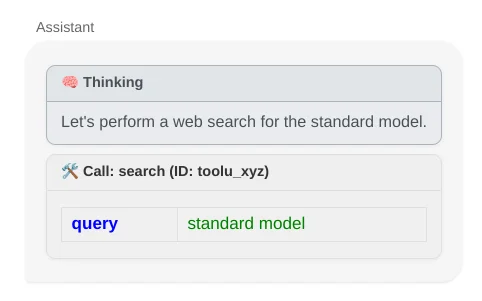
Tool/Function Calls (tool_use content block)
{
  "role": "assistant",
  "content": [
    {
      "type": "thinking",
      "thinking": "I should search for this."
    },
    {
      "type": "tool_use",
      "id": "toolu_abc",
      "name": "search",
      "input": {
        "query": "standard model physics"
      }
    }
  ]
}
In Chat View:
Tool Results (tool_result content block)
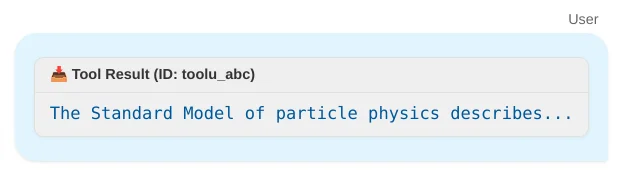
{
  "role": "user",
  "content": [
    {
      "type": "tool_result",
      "tool_use_id": "toolu_abc",
      "content": "The Standard Model of particle physics describes..."
    }
  ]
}
In Chat View:
2d. Google Gemini Format
Google Gemini datasets use "contents" and "parts" instead of standard OpenAI structures.
Basic Structure
Gemini datasets use a "contents" key instead of "messages", and messages use "parts" arrays instead of a single "content" string. The model role is "model" instead of "assistant":
{
  "contents": [
    {"role": "user", "parts": [{"text": "What is the capital of France?"}]},
    {"role": "model", "parts": [{"text": "The capital of France is Paris."}]}
  ]
}
In Chat View:

Chain-of-Thought Reasoning
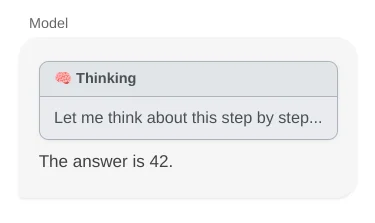
Gemini 2.0 Extended Thinking ("thought": true part)
Used by Gemini 2.0 Flash Thinking and similar reasoning-capable Gemini models:
{
  "role": "model",
  "parts": [
    {"text": "Let me think about this step by step...", "thought": true},
    {"text": "The answer is 42."}
  ]
}
Reasoning content is rendered as a grey card-style 🧠 Thinking block inside the assistant's turn.
In Chat View:
Tool Calls & Function Calling
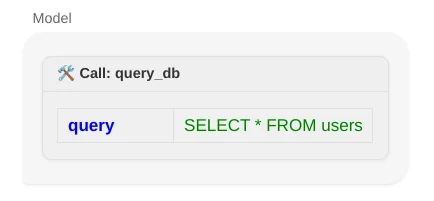
Tool/Function Calls (function_call part)
{
  "role": "model",
  "parts": [{
    "function_call": {"name": "query_db", "args": {"query": "SELECT * FROM users"}}
  }]
}
In Chat View:
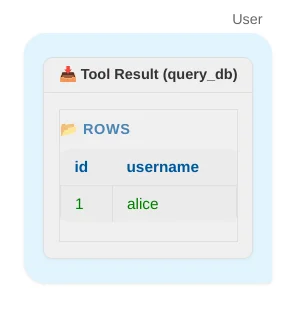
Tool Results (function_response part)
{
  "role": "user",
  "parts": [{
    "function_response": {
      "name": "query_db",
      "response": {"rows": [{"id": 1, "username": "alice"}]}
    }
  }]
}
In Chat View:
3. The File Browser (Left Pane)
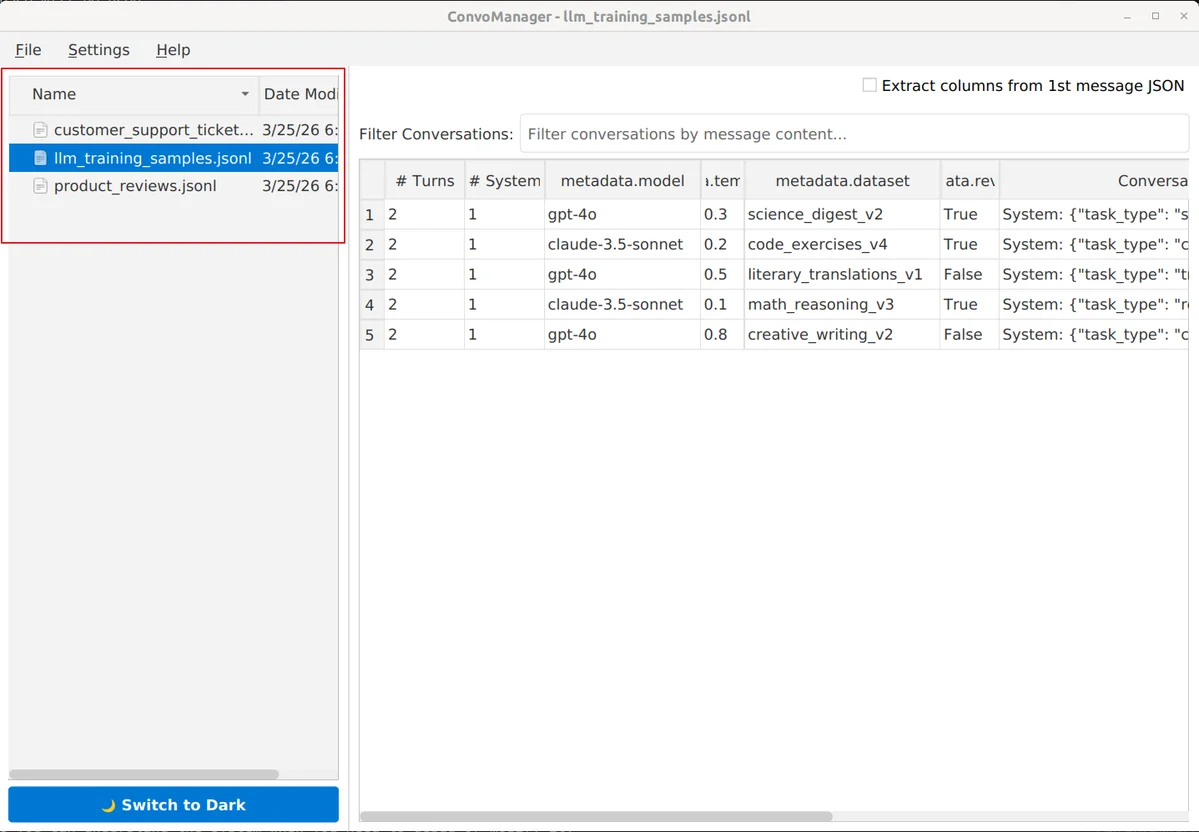
The File Browser allows you to navigate your local folders and select datasets for viewing.
- Browsing a Folder: Go to
File > Browse Folder...(or pressCTRL+O) to select the directory containing your JSONL files, which will show in the File Browser. - Recent Folders: Access your recently opened directories via the
File > Recent Foldersmenu to quickly jump back to different data collections. - Loading JSONL Dataset Files: Click on any
.jsonlfile in the File Browser to instantly load the dataset into the Dataset Panel, on the right. - Creating a New Dataset: Go to
File > New Dataset(or pressCTRL+N) to create a completely new, empty JSONL dataset file. - Saving a Dataset as a Copy: Go to
File > Save Dataset As...(or pressCTRL+SHIFT+S) to clone the active dataset file under a new name. - Exporting Selected Conversations: Go to
File > Export Selection(or pressCTRL+SHIFT+E), or click onExport Selectionon the Action Strip to save only your currently selected conversations to a new JSONL file. - Exporting a Filtered Dataset: Go to
File > Export Filtered Results(or pressCTRL+E) to save only the conversations matching your current filter results to a brand-new JSONL file. - Deleting a Dataset: Right-click on any
.jsonlfile in the File Browser to see a context menu allowing you to delete the dataset file.
4. The Dataset Panel (Right Pane)
The Dataset Panel is where you interact with your data. It switches between a high-level Dataset Mode (table with all conversations in the dataset) and a detailed Single Conversation Mode.
4a. Dataset Mode - Working with datasets
When you select a file, ConvoManager defaults to the Dataset Mode. It shows all conversations in the loaded file, and allows you to filter the conversations, make selections, show special columns, etc.
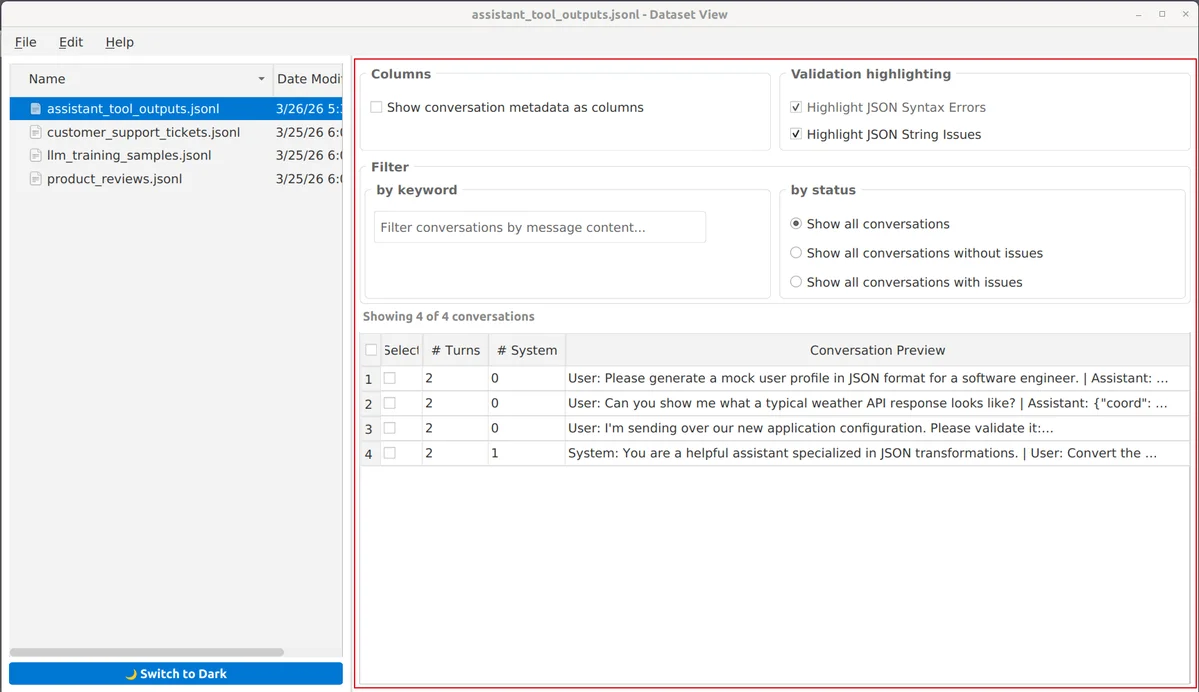
Validation & Data Integrity
During loading of a dataset, ConvoManager automatically scans every conversation for data integrity.
-
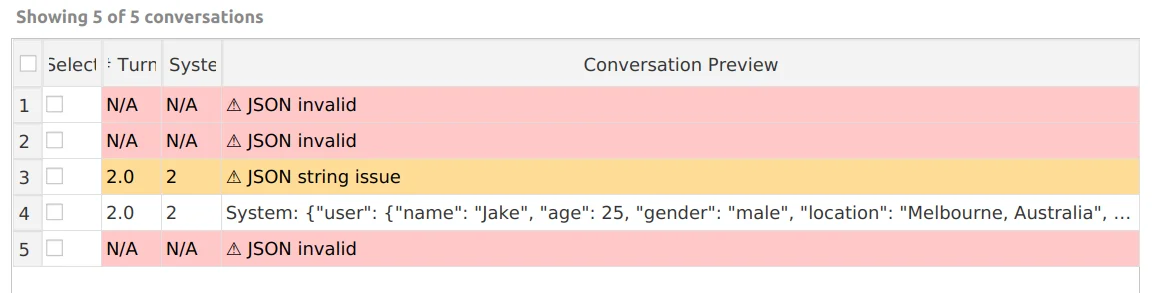
Corrupt JSON: If a line cannot be parsed as JSON, it is highlighted with a light red background in the table. This cannot be disabled as it is essential for proper functioning of the application.
-
JSON Syntax Issues in text content: JSON syntax of escaped JSON strings in the text content of a message can also be parsed for syntax issues. This parsing can be disabled in the settings. If the content of a message appears to be JSON, but cannot be parsed as JSON, it will then be highlighted in the table with a yellow background. This highlighting can be disabled individually per dataset in the Dataset Options.
Dataset Options
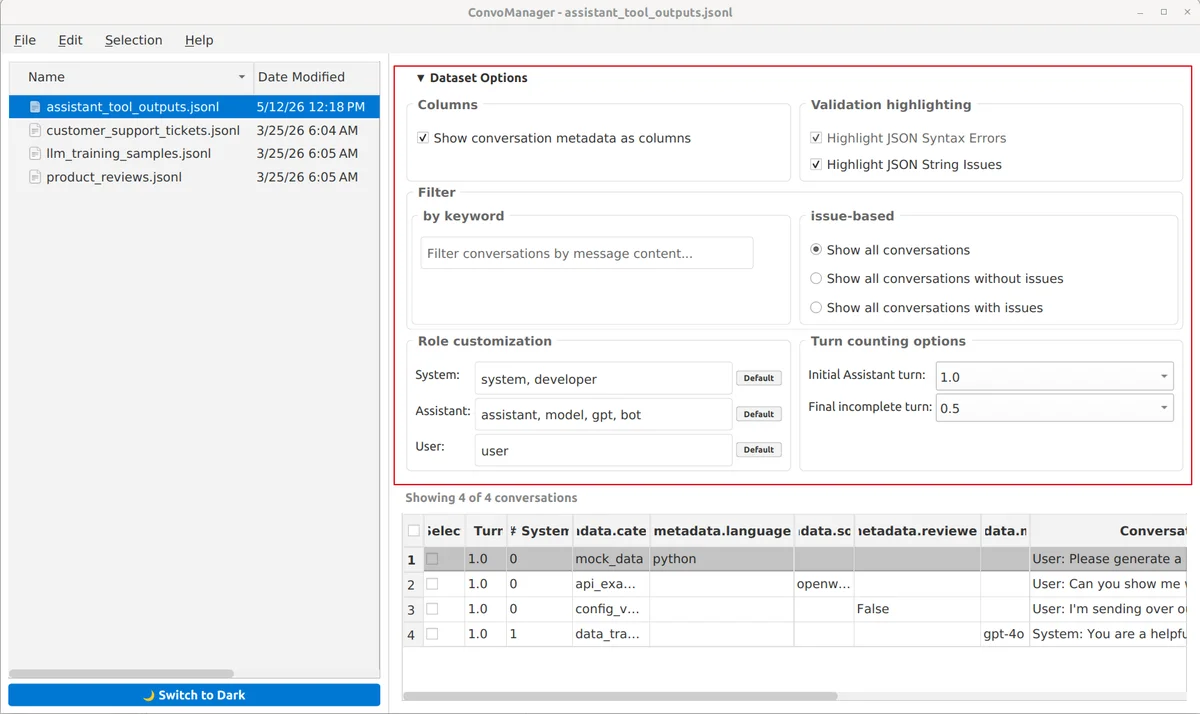
The Dataset Options section contains filters and per-dataset settings, such as column extraction settings, validation highlighting settings, role customization and turn counting options.
By default, this section is collapsed to save vertical space.
You can click the header to expand or collapse it:

That opens the Dataset Options panel.
Filtering the dataset
The filters at the top of the table allow you to filter and validate your dataset in real-time.
-
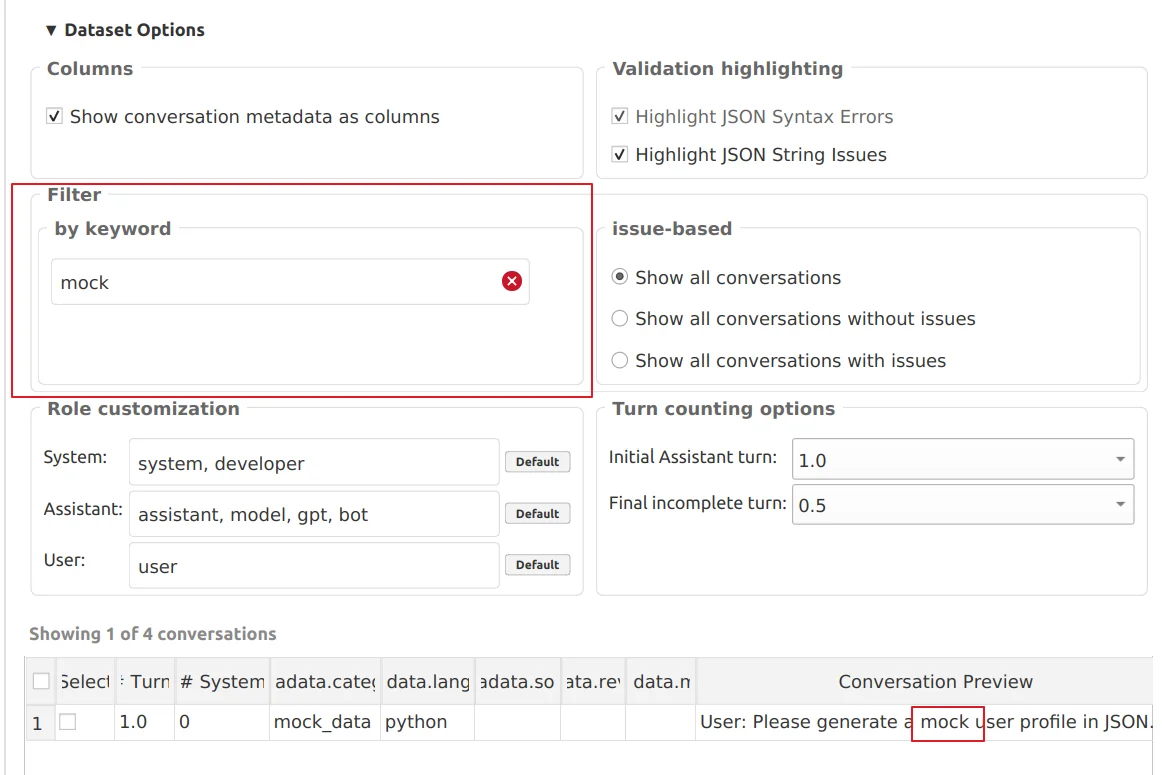
Filter by keyword: Searching text with the search box instantly hides all conversations that do not contain the matching text.
-
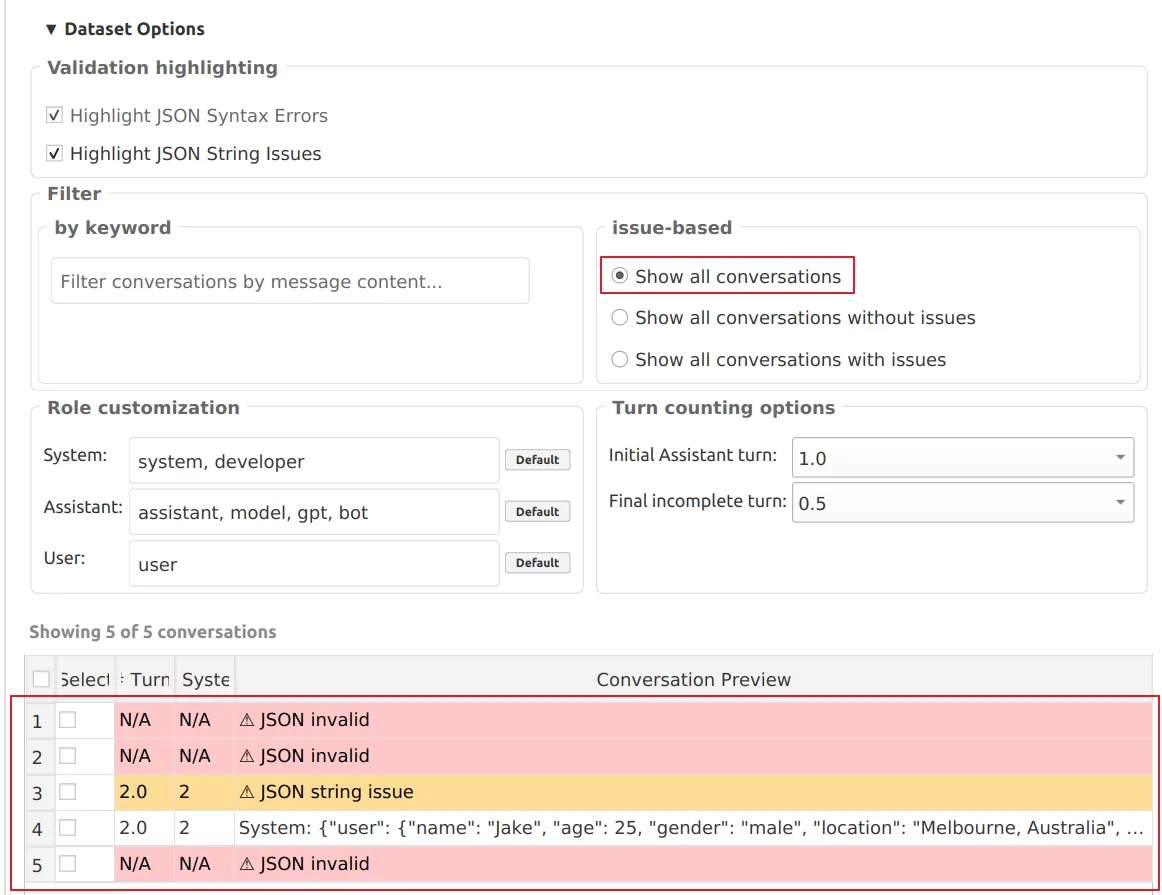
Issue-based filter: Instead of manually hunting for corrupt data or syntax errors, the issue-based filter allows you to isolate records based on their validation status. You can filter by selecting which type of conversations to show, and you can further refine this by choosing which specific issues to consider!
-
Show all conversations: This is the default view. It shows the entire dataset, including completely clean conversations, those with corrupt JSON (light red background), and those with JSON string errors (yellow background).
-
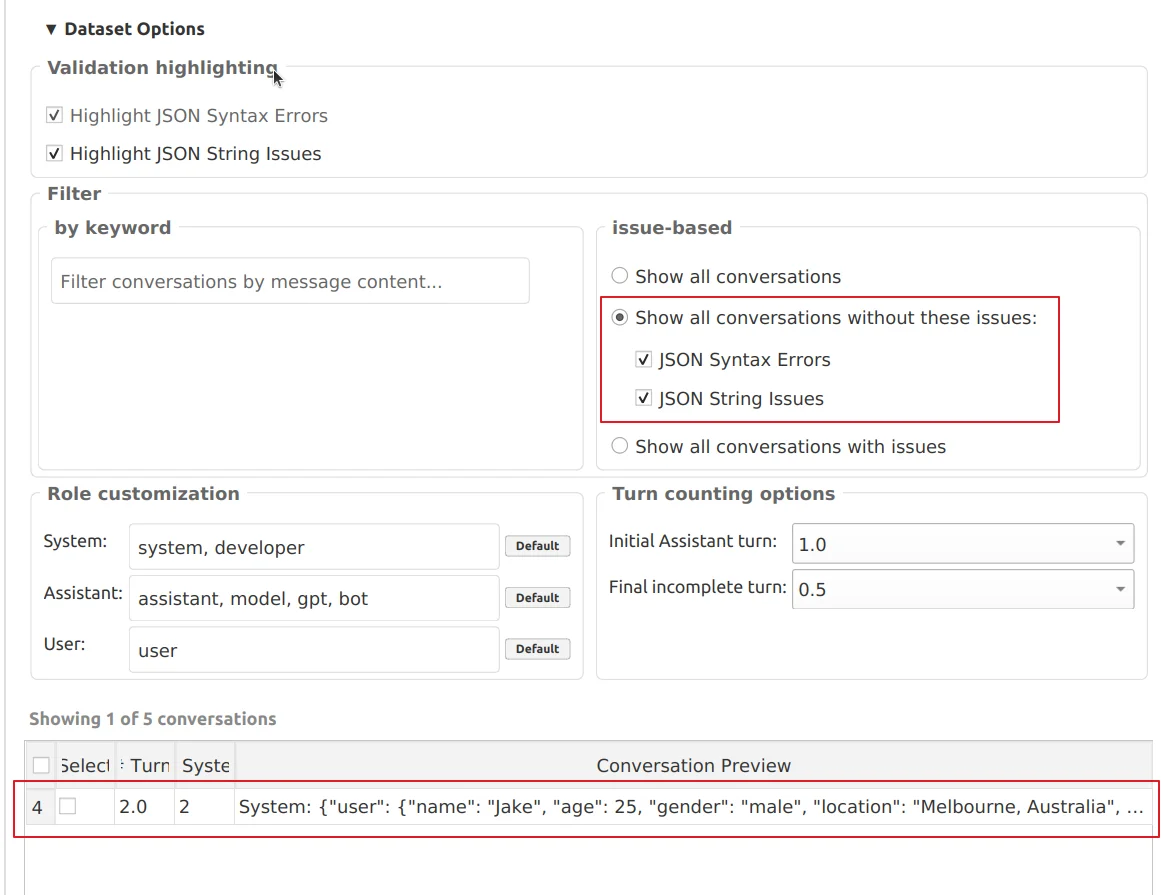
Show only conversations without issues: This hides any conversation that contains the issues you have selected, allowing you to focus on the clean portion of your dataset.
If both issue types are selected, you will see a completely clean dataset with no corrupt JSON or JSON string errors:
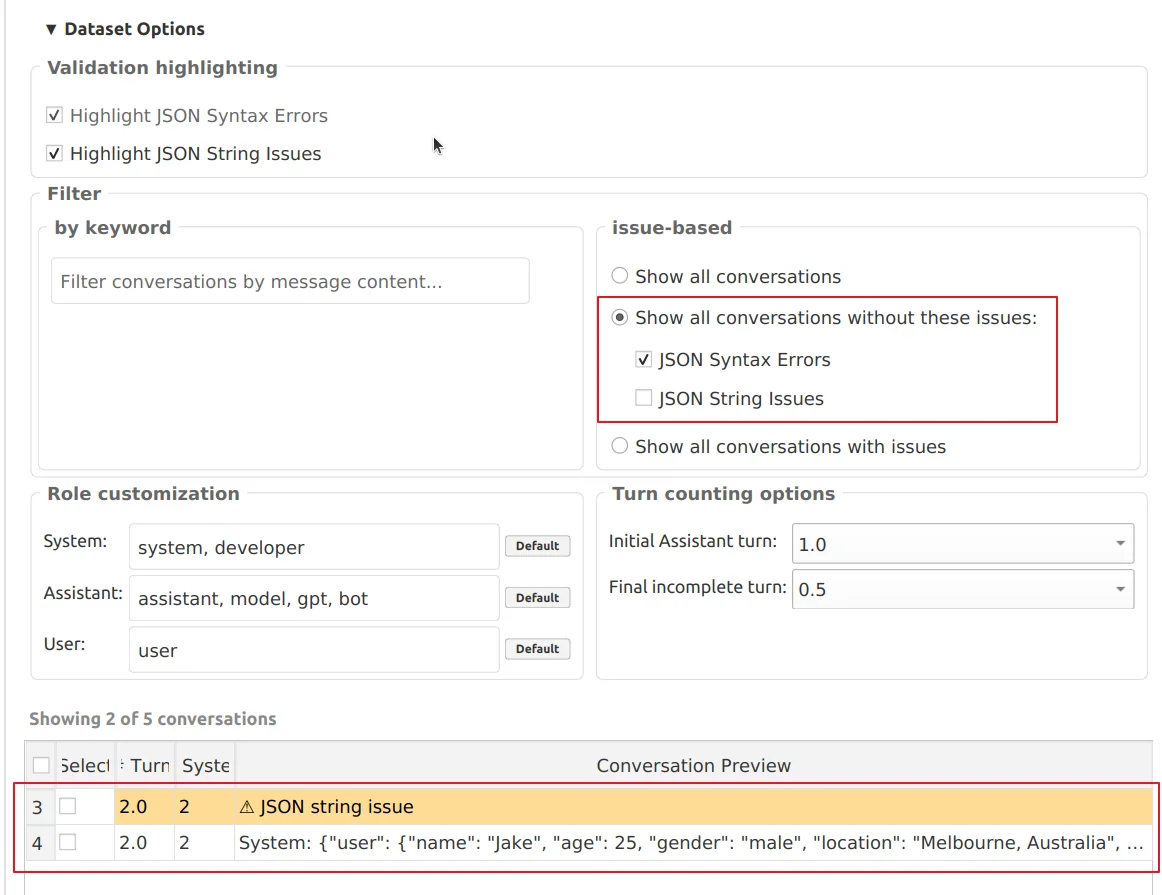
When you only select "JSON Syntax Errors" as an issue to filter out, it will show everything else: clean conversations with no issues, as well as all conversations with JSON syntax error (not in content strings):
- Show only conversations with issues: Instantly filters the view to show only the conversations that have been flagged with issues (such as unparseable JSON or internal syntax errors). This is incredibly useful for quickly triaging and repairing broken datasets.
The table will show only the conversations with the types of issues that you selected. For example, if you only have "JSON Syntax Errors" checked as an issue (ignoring JSON string errors), then it will show you the conversations with corrupt JSON syntax, while hiding the yellow string-error conversations as well as all clean conversations:
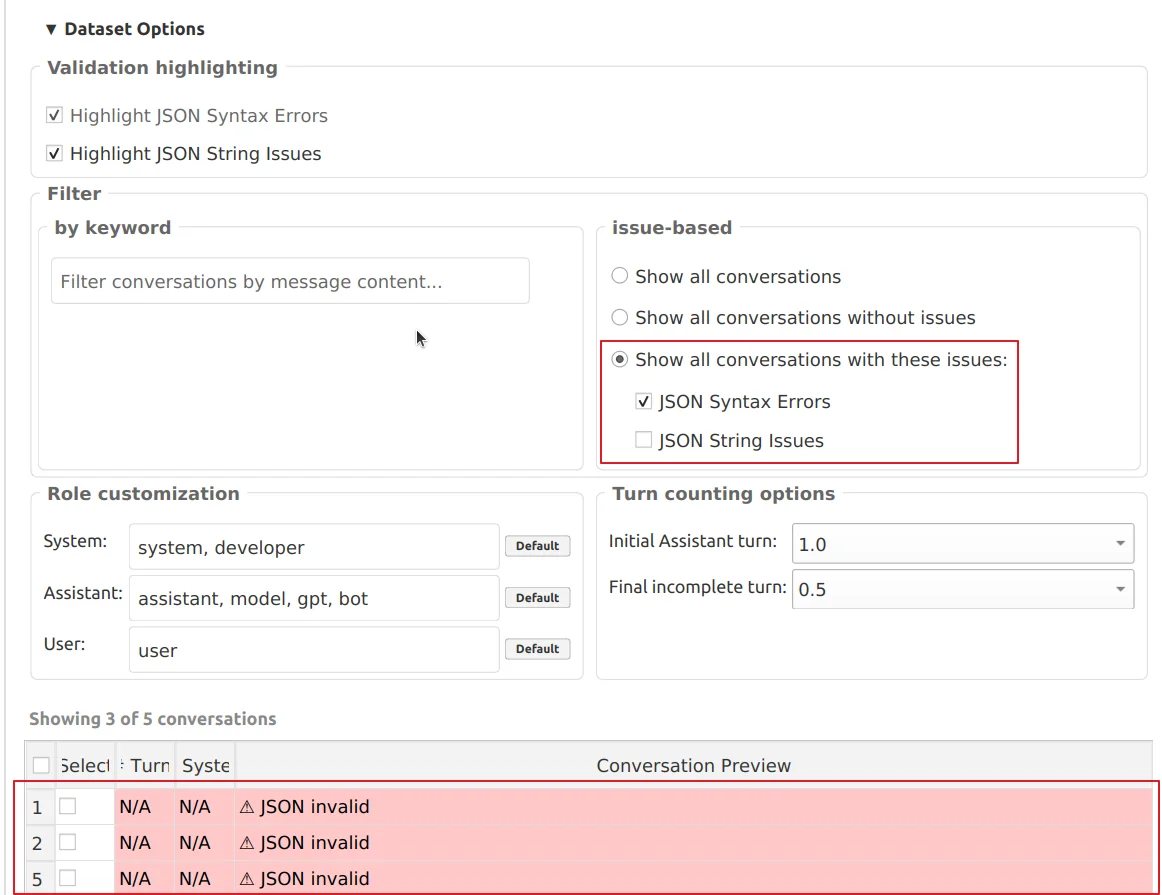
-
Exporting Filtered Datasets
After applying filters, you can select File > Export Filtered Results (or press CTRL+E) to export only the visible subset to a new JSONL file. This is very useful for refining a dataset, for example, to make a clean copy of your dataset containing only the conversations with no issues.
Combined Filtering You can combine both filters simultaneously. For example, you can select "Records with issues only" and type a specific keyword to find only the broken conversations that also contain that exact keyword.
Bulk Manipulation & Selection
The Dataset Mode features a checkbox-driven selection system for performing operations on multiple rows at once.
-
Checking Rows: Click the checkbox in the leftmost column to select conversations.
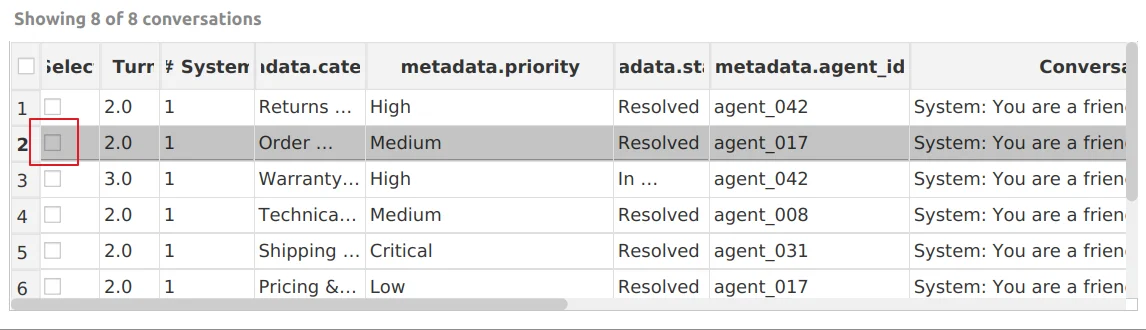
-
Action Strip: When one or more rows are checked, an Action Strip appears at the top of the table:
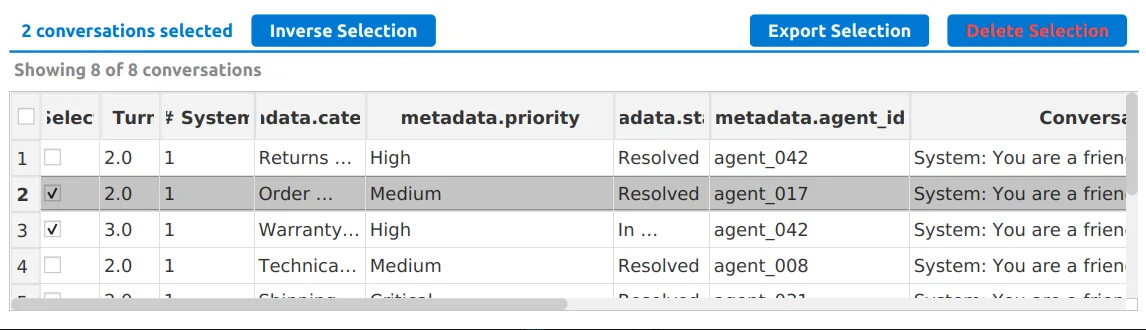
- Inverse Selection (also
CTRL+I): Rapidly flip the current selection. - Export Selection (also
CTRL+SHIFT+E): Save the checked rows to a brand-new JSONL file. - Delete Selected (also
DELETEkey): Permanently delete checked rows from the current file.
- Inverse Selection (also
-
Keyboard Shortcuts, Edit & Selection Menus: Manage your dataset even faster using the dedicated menus or keyboard shortcuts:
- Select All (In
Selectionmenu, orCTRL+A, or the checkbox in the table's top-left corner): Check all currently visible rows. - Deselect All (In
Selectionmenu, orCTRL+SHIFT+A, or the checkbox in the table's top-left corner): Unconditionally clear the selection of all rows. - Inverse Selection (In
Selectionmenu, orCTRL+I): Invert the selection of all visible rows. - Export Selection (In
SelectionorFilemenu, orCTRL+SHIFT+E): Save the checked rows to a brand-new JSONL file. - Insert New Conversation (In
Editmenu, orCTRL+SHIFT+I): Insert a new empty conversation skeleton at the current position. - Delete Selected Rows (In
Editmenu, orDeletekey): Permanently delete checked rows after confirmation.
- Select All (In
Immediate Application: All structural operations performed via the Action Strip or the Edit menu are immediate and are saved to the dataset file instantly upon confirmation.
Structural Editing & Empty Datasets
You can modify the structure of the dataset itself by adding new entries directly from the table:
- Empty Datasets: When opening a completely empty dataset, a beautiful Empty State placeholder is shown. Simply click the "➕ Add First Conversation" button to append your first conversation skeleton to the file.
- Right-click Insertion: Right-click any conversation row in the table view to choose Insert New Conversation Before #... or Insert New Conversation After #.... You can also right-click on empty viewport space to append a new conversation to the end of the file.
- Edit Menu / Shortcut: Choose Edit > Insert New Conversation (or press
CTRL+SHIFT+I) to instantly insert a new conversation. If a row is selected, it inserts before the selected row; if no row is selected, it appends to the end. - Automatic Updates: A blank conversation template (skeleton) is instantly added to the file, and the Dataset Mode table updates automatically, allowing you to draft conversations immediately.
Metadata Columns & Root Properties
Some datasets contain additional information stored outside the main messages array. ConvoManager automatically supports and extracts two types of metadata:
- Metadata Dictionary: A dedicated
"metadata"object at the root level. - Root Properties: Any standalone keys at the root level (e.g.,
"reward","weight","source").
  {
    "messages": [],
    "metadata": { "category": "support", "split": "train" },
    "reward": 0.85,
    "weight": 1.0
  }
These are useful for storing information about the conversation that is not part of the conversation content itself. For example, a dataset of customer support tickets might store the customer's name and the date the ticket was created.
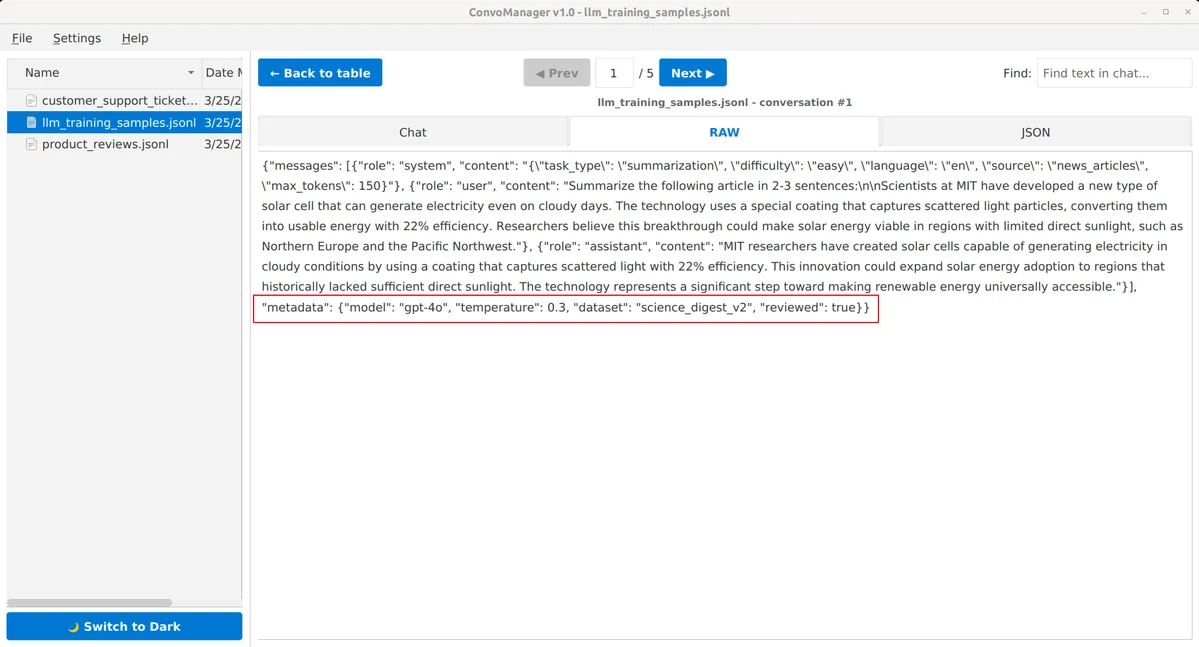
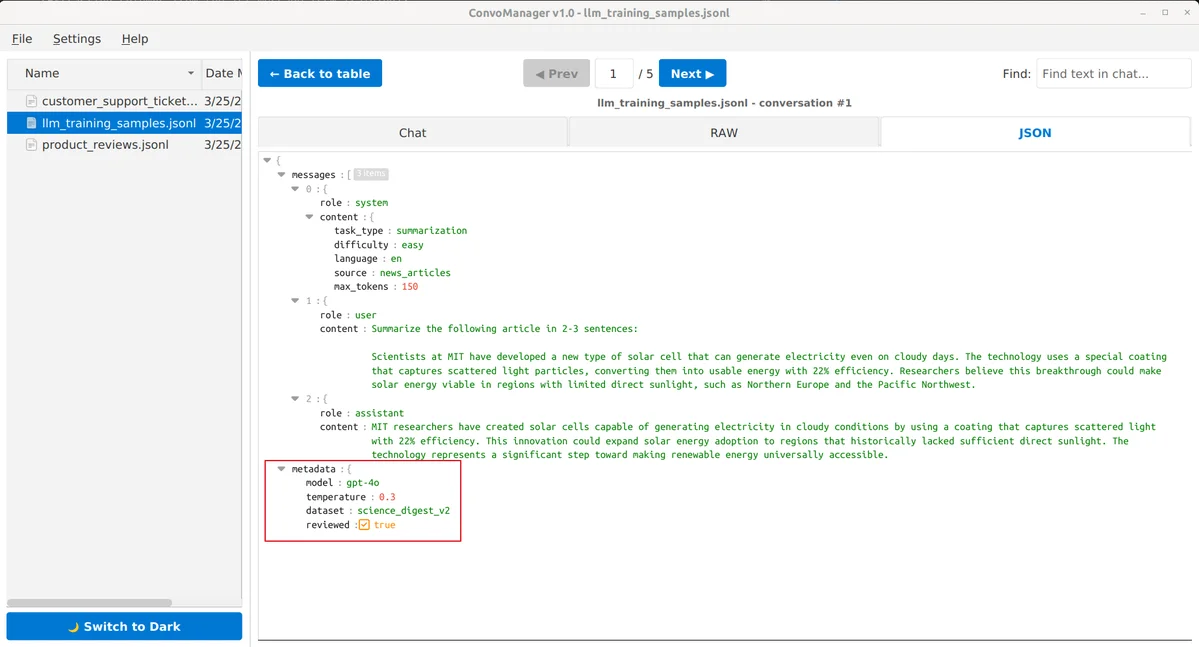
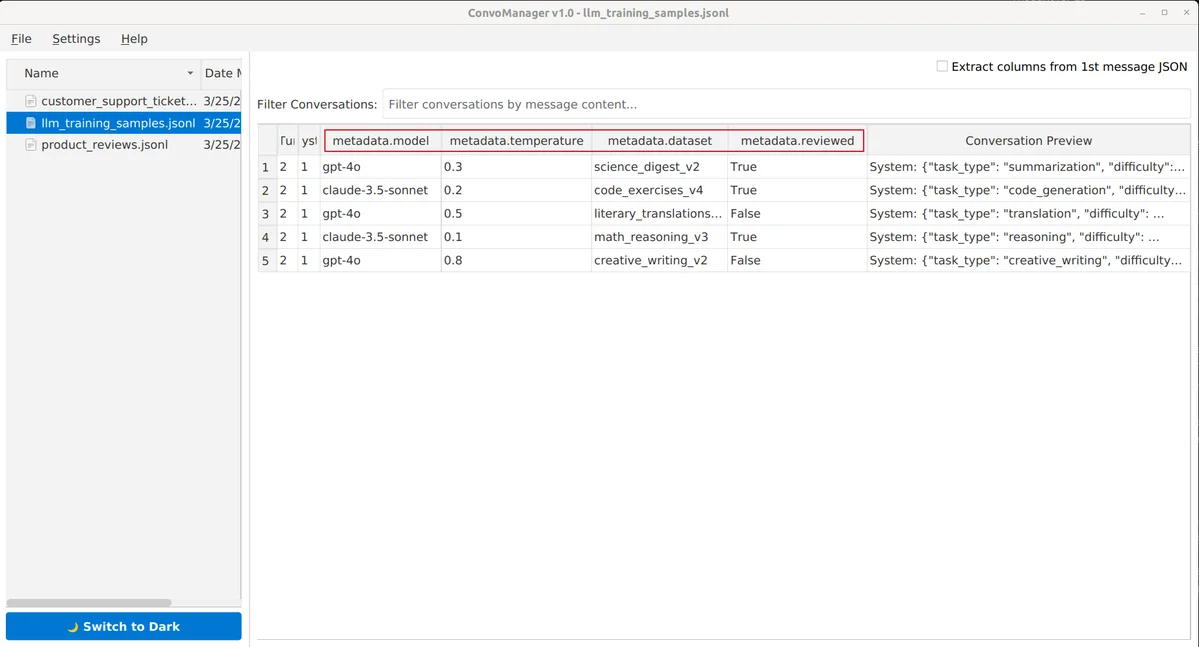
If your JSONL records contain a "metadata" object or any other root-level properties, all of those keys automatically become sortable columns in the dataset table:
Extracting columns from the 1st message JSON
For some specific use cases, the first message of each conversation in a dataset contains JSON data. In this case, it can be useful to see this data as separate columns in Dataset Mode. Note that the first message's role name does not matter; as long as the first message contains valid JSON content, the app will parse and display it as columns.
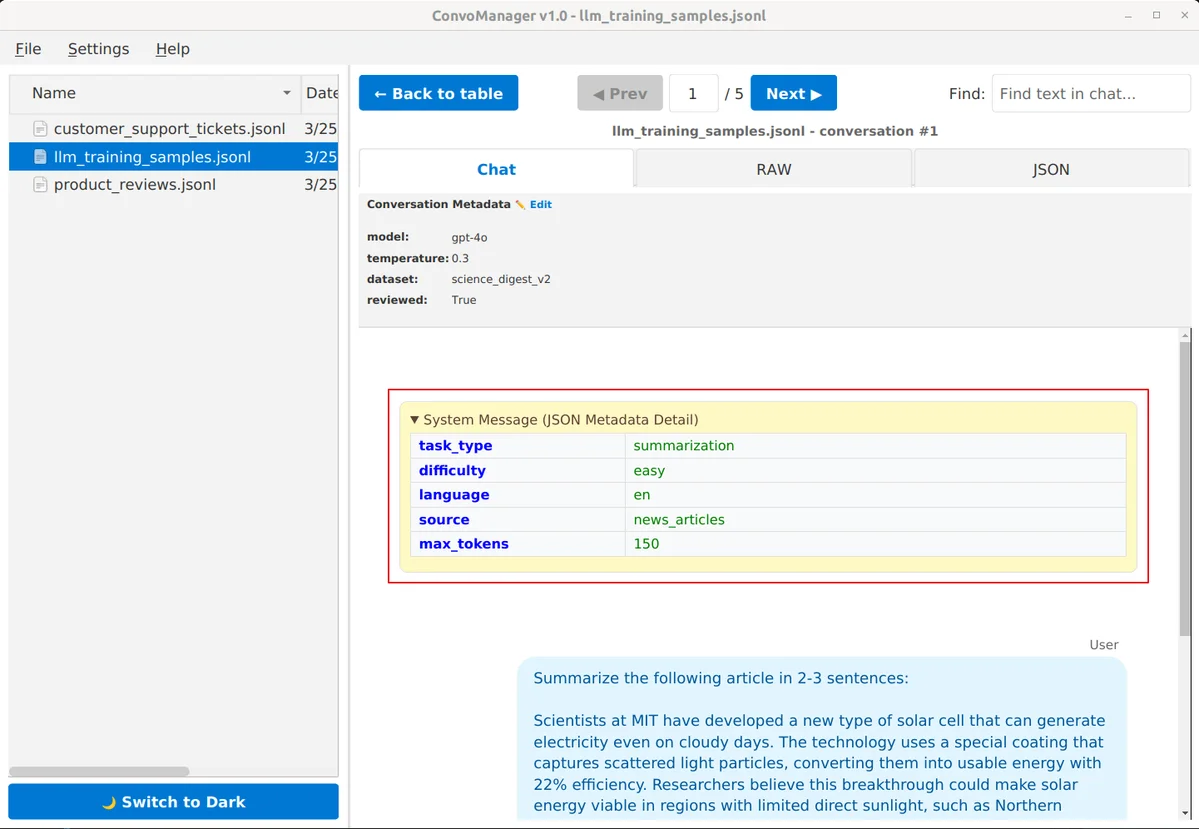
This feature must first be enabled globally in Settings → Metadata → "Enable 1st conversation 1st message JSON columns". Once enabled, a toggle appears in the top right corner of the Right Pane, labeled "Show columns from 1st conversation's 1st message JSON", which allows you to show or hide those columns per file.

- How it works: When enabled, the app parses the content of the first message in the very first conversation of the dataset. If it detects valid JSON, it automatically transforms those JSON keys into sortable columns in Dataset Mode.
- The Result: The entire table re-renders, reading that data from the first message of every other conversation and populating the new columns.
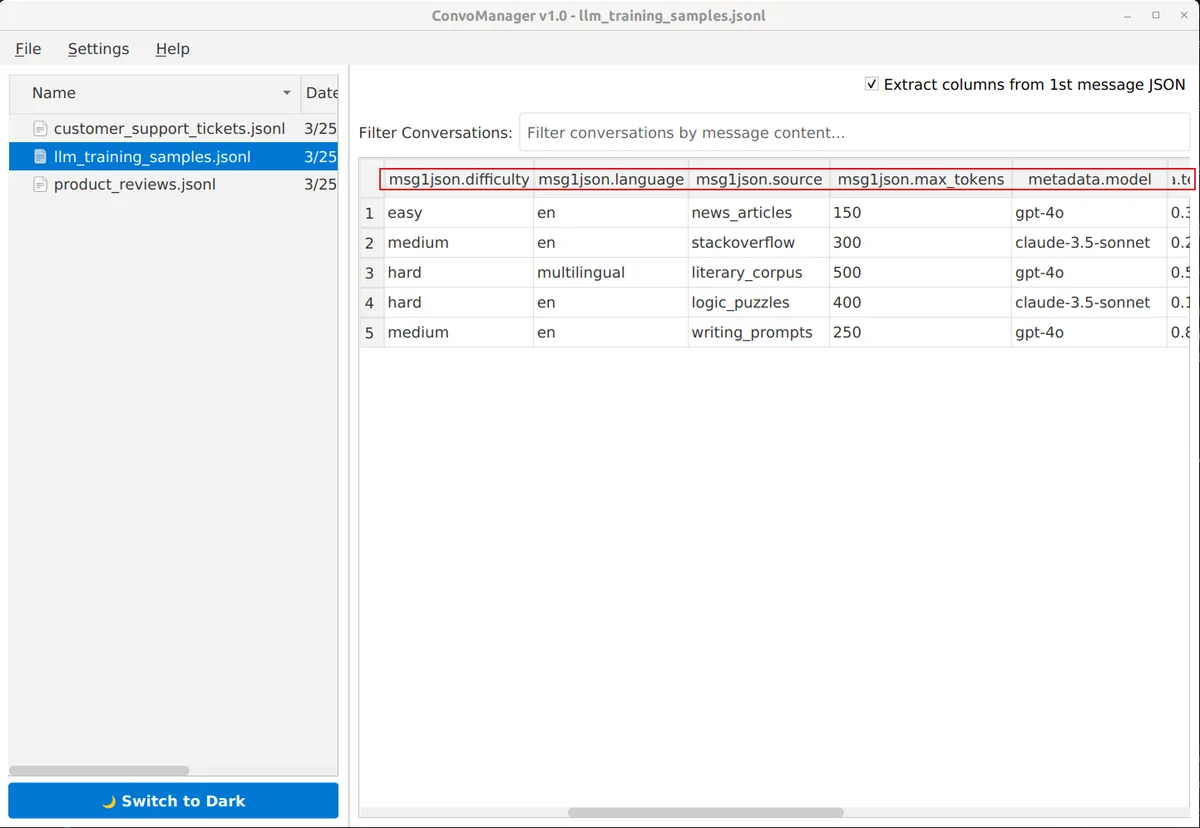
This feature assumes every conversation in your dataset adheres to the same schema in its first message. If this is not the case, then don't enable it.
Role Customization
If a dataset uses customized role names in its schemas (e.g., "developer" instead of "system", "customer" instead of "user", or "agent" instead of "assistant"), ConvoManager allows you to map those values to the correct canonical categories. Since thinking processes and tool calls are natively and automatically identified, customization is kept extremely simple.
- Role Mapping Fields: Inside the Dataset Options card under the "Role customization" section, you can customize mappings for standard message roles:
- System (default:
system, developer) - Assistant (default:
assistant, model, gpt, bot) - User (default:
user)
- System (default:
- Restoring Defaults: Next to each text input, a small "Default" button allows you to instantly reset that specific role category back to its system standard.
- Save & Revert Mappings: When you type a change or click a default reset, a "Save Mappings" and "Revert" button group appears at the bottom. The new settings are only committed and applied once you click "Save Mappings". Clicking "Revert" restores your last saved mappings.
- Synonyms Support: Multiple options can be provided as a comma-separated list. Any of these values occurring in your dataset's conversations will be correctly identified as the canonical role (e.g., for bubble styling, collapsible rendering, and accurate turn-counting).
- Unrecognized Roles: If a message in a conversation uses a role name that is not specified in any of these mapping fields, it will be treated as an unmapped role. These messages will fall back to a default grey styling in the Chat View, and their label will be appended with a red "(Unrecognized)" indicator to make them instantly obvious.
Turn Counting Configurations
Directly next to the Role Customization box, the Turn counting options panel allows you to configure exactly how incomplete or trailing turns contribute to the total turn count:
* Initial Assistant turn: How a leading assistant response (without user prompt) is counted (0.0 for don't count, 0.5 for half a turn, or 1.0 for a full turn).
* Final incomplete turn: How a trailing user/system message that lacks a concluding assistant response is counted (0.0, 0.5, or 1.0).
4b. Single Conversation Mode - Viewing and Editing Conversations
Double-click any row in Dataset Mode to enter Single Conversation Mode.
Within Single Conversation Mode, three distinct editing sub-modes are available via the top tabs: Chat, TEXT, and JSON. When editing the contents of a conversation in any of these modes, the conversation also updates automatically in the other two modes.
Repairing Corrupt Data
If you open a row flagged as invalid (e.g., corrupt JSON): 1. The viewer automatically forces TEXT mode. 2. The Chat and JSON tabs are disabled to prevent crashes or loss of data from unparseable structures. 3. Fix the syntax in the TEXT editor and click Save. 4. The application re-validates the fixed line. If successful, all view modes are instantly unlocked, and the table highlight is removed.
Syntax Error Highlighting & Banners: In Single Conversation Mode, the exact position of the syntax issue will be highlighted with a red background (both in Chat, Text and JSON View). Furthermore, a banner with the exact error message is shown at the top, enabling you to easily pinpoint and fix the issues.
Navigation & Local Search
The top navigation bar provides tools to move through the file:
- Back to Dataset Mode: Click the "Back to Dataset Mode" button to return to Dataset Mode.
- Previous / Next: Step through conversations one by one.
-
Jump to index: Type a record number (e.g.,
500) into the box and pressEnterto jump straight to that conversation in the file.
-
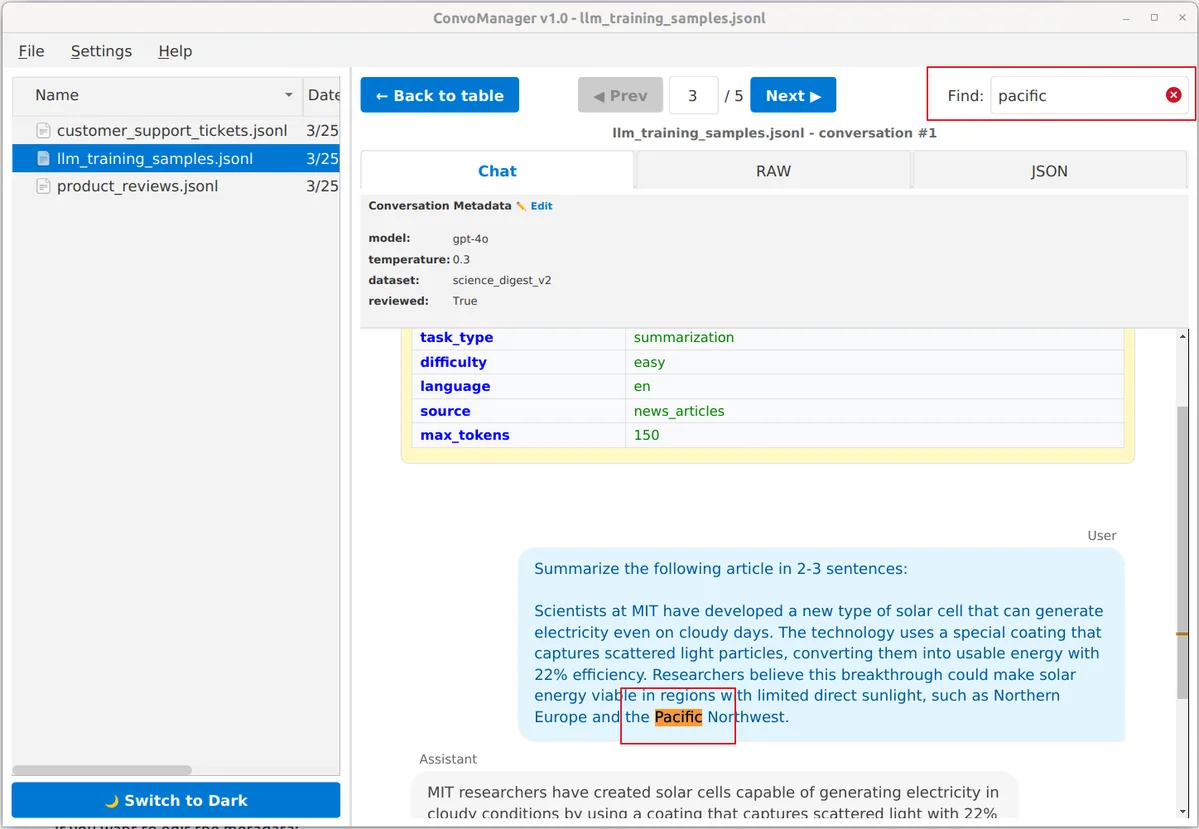
Local Search (Find): Use the 'Find' box to highlight matches only within the currently open conversation. Matches are highlighted in yellow across all view modes (Chat, TEXT, and JSON).
Chat View
The default mode for human-readable review, rendering messages as colored bubbles.
-
Metadata Panel
If a conversation has any metadata or root-level properties, a Metadata Panel appears at the top of the view. The panel cleanly visually separates Root Properties (standalone keys) from the Metadata Dictionary (keys inside the
"metadata"object):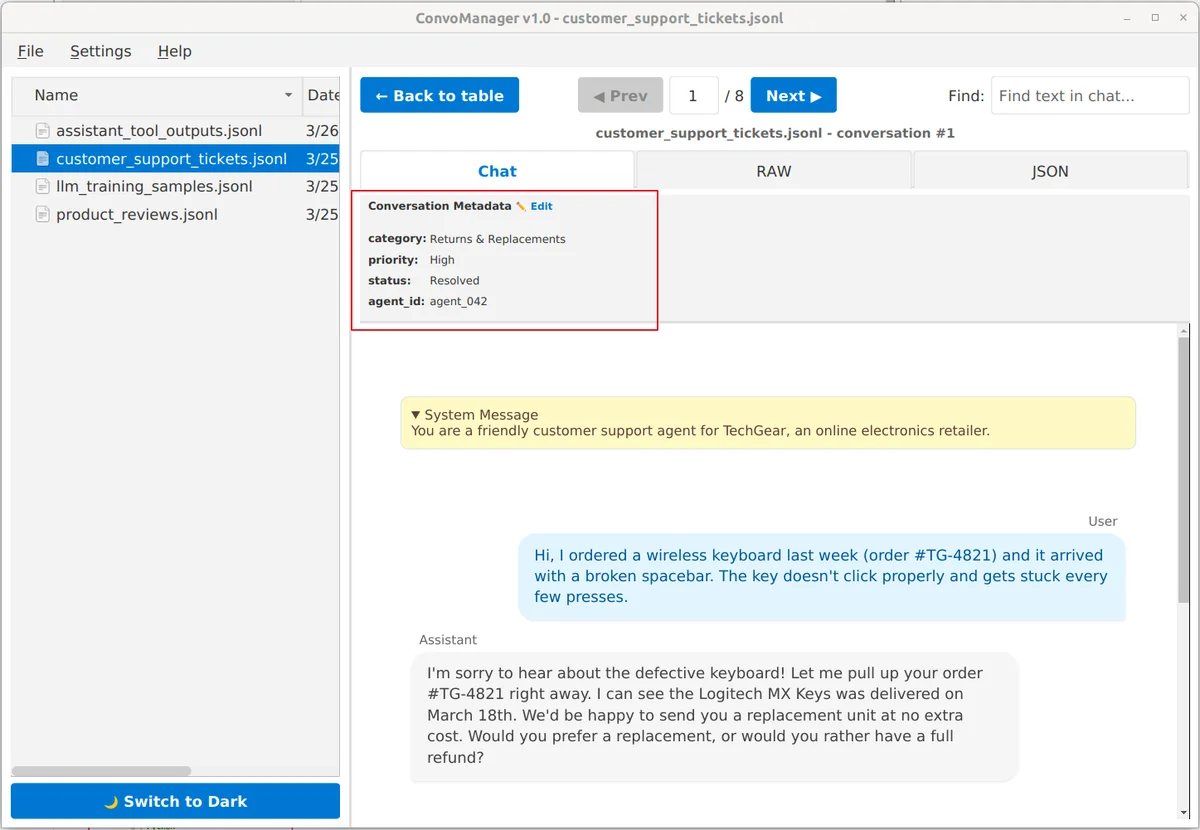
If you want to edit the metadata:
- Click the Edit button (✏️) in the Metadata Panel.
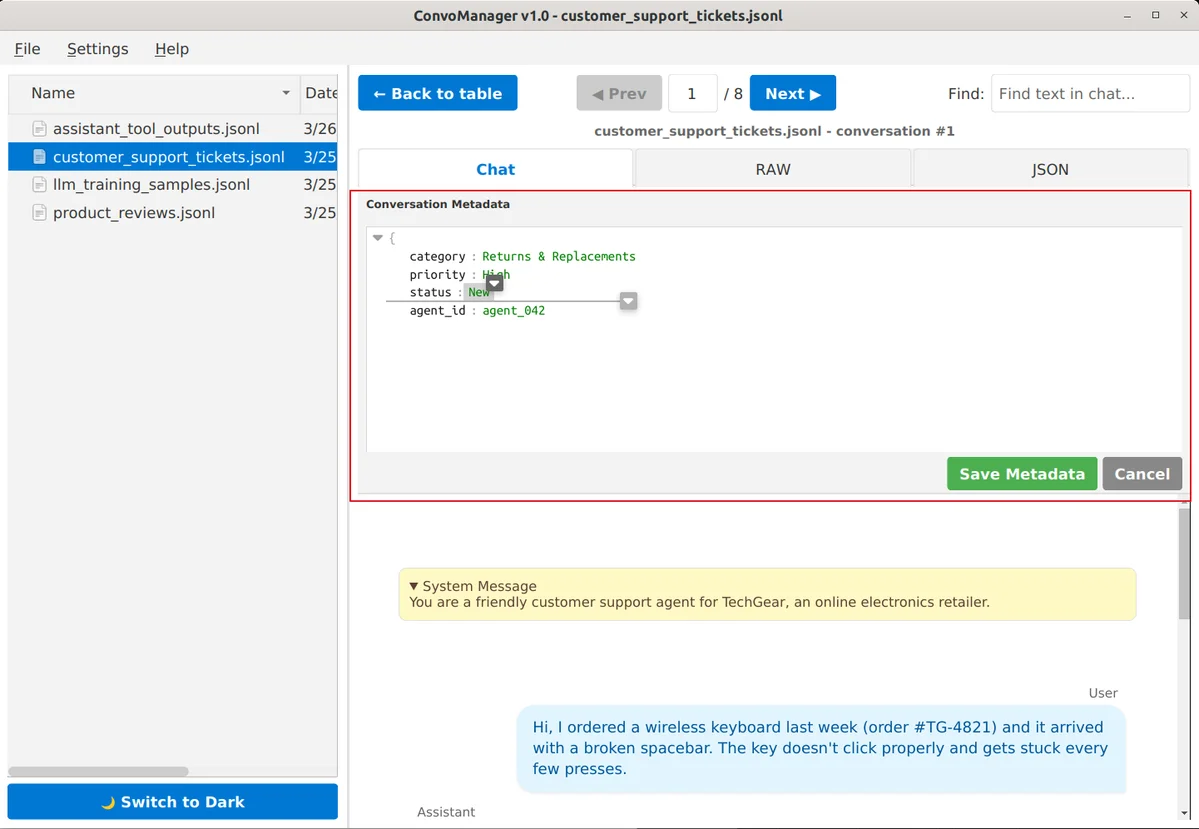
- The panel expands to show a JSON Tree Editor containing a combined view of both your root properties and the metadata dictionary.
- Make your changes and click Save. The panel automatically collapses after saving to disk, correctly routing your changes back to their respective root or dictionary locations in the JSONL file.
-
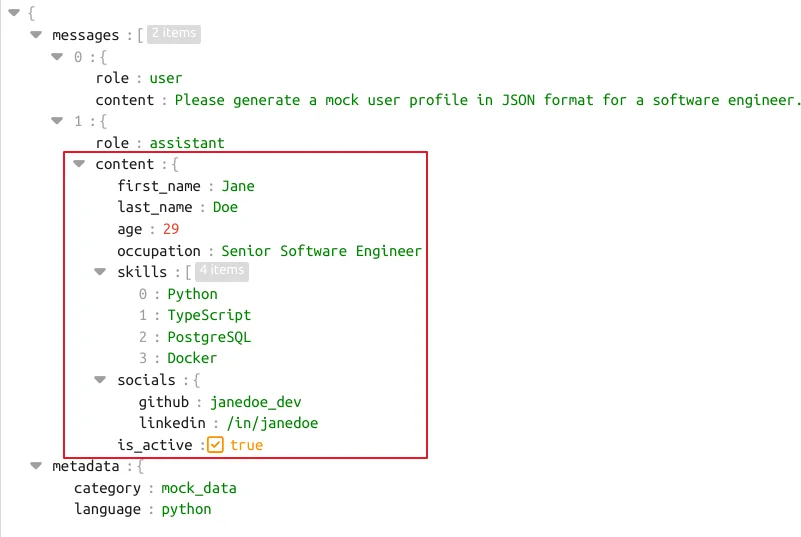
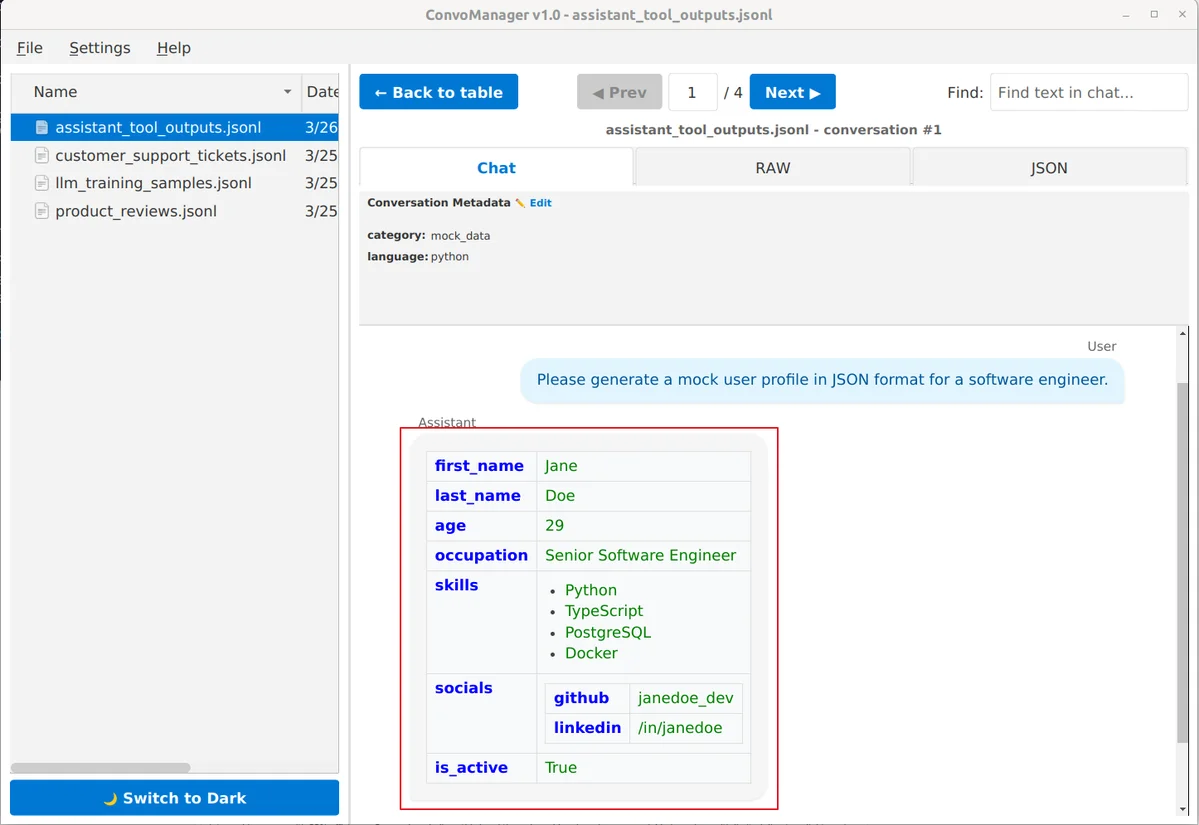
Smart JSON Content Parsing: If the text content of any message is valid JSON, ConvoManager parses it and builds a structured, multi-colored HTML table instead of showing a wall of unreadable text.
-
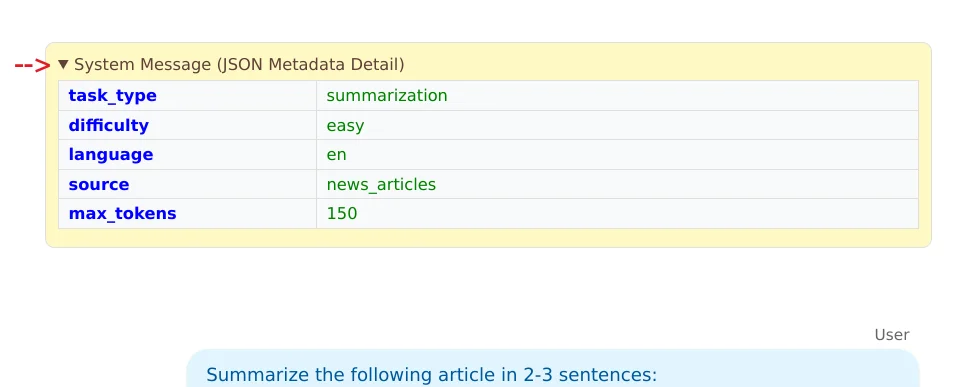
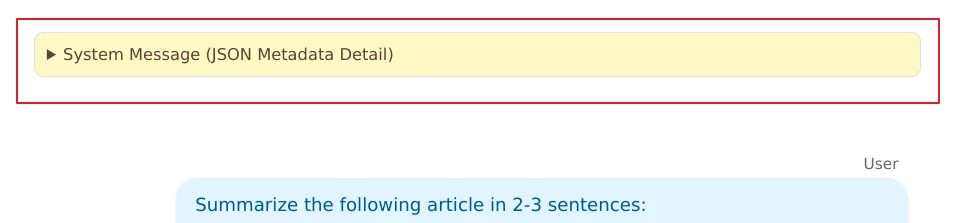
Collapsible System Messages: System instructions are rendered distinctively and are collapsible via a toggle arrow, allowing you to hide massive system directives to focus on the dialogue.
-
Collapsible Grey Thinking Bubbles: Chain-of-Thought reasoning steps are styled in a sleek card-style box labeled
🧠 Thinkingwhich matches the visual structure of tool calls, letting you clean up your workspace. All major reasoning formats are supported: DeepSeek R1 / OpenAI o-series (reasoning_content), DeepSeek / Qwen / Llama inline<think>tags, Gemma inline<thought>tags, Anthropic Claudethinkingblocks, and native Gemini 2.0"thought": trueparts. -
Sleek Tool Parameter Tables: Model requests for external function/tool execution are rendered as high-readability parameter tables showing the target function name and all its arguments. Supported across all formats: OpenAI/Qwen
tool_calls, Anthropictool_useblocks, and Geminifunction_callparts. -
Terminal Monospace Logs: Tool results and execution outputs are displayed inside robust terminal-style log boxes. This covers OpenAI
toolrole messages, Anthropictool_resultblocks, Geminifunction_responseparts, and Llama code interpreter outputs (ipython/environmentroles). -
Visual Action Step Rendering: Empty messages or messages containing custom metadata fields (like
"custom_edge") are displayed with a 🎬 Action header. Any custom metadata keys inside the message object are parsed and rendered recursively as clean, nested tables inside the bubble. -
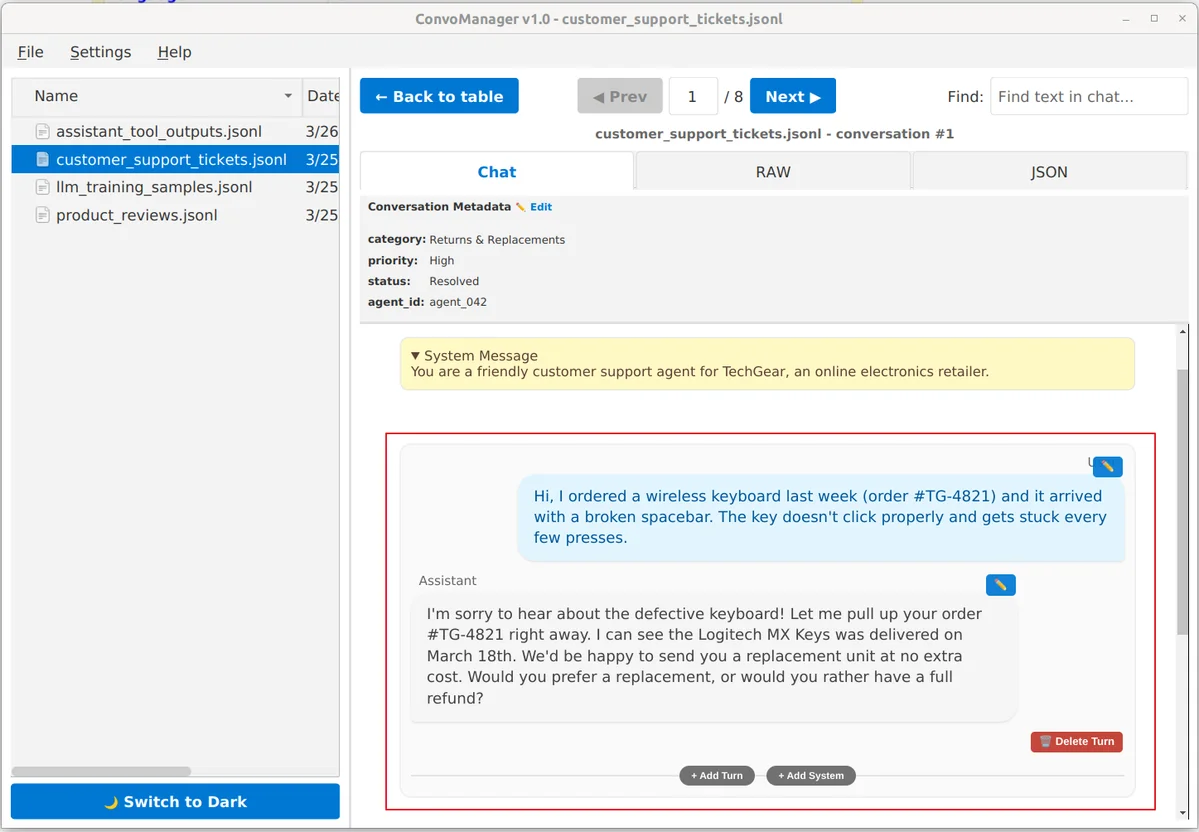
Inline Message Editing: Hover your mouse over any chat bubble and a quick-action menu appears.
-
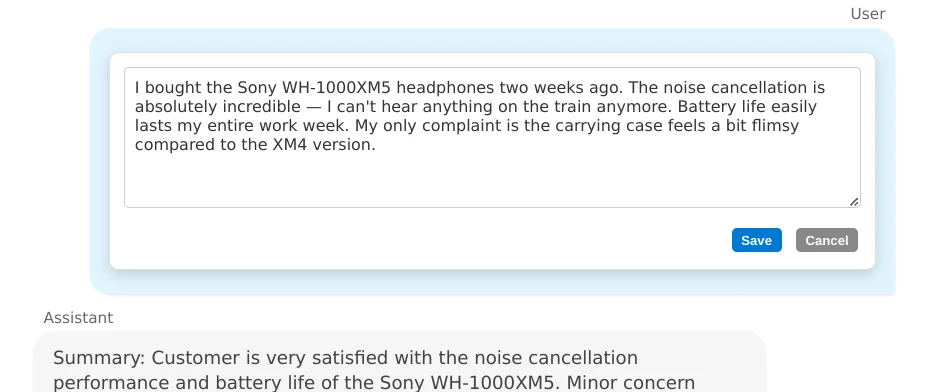
Editing text bubbles:
- Hover your mouse over any message bubble.
- Click the Edit button (✏️) that appears.
- Type your changes and click Save (or press
CTRL+ENTER).
-
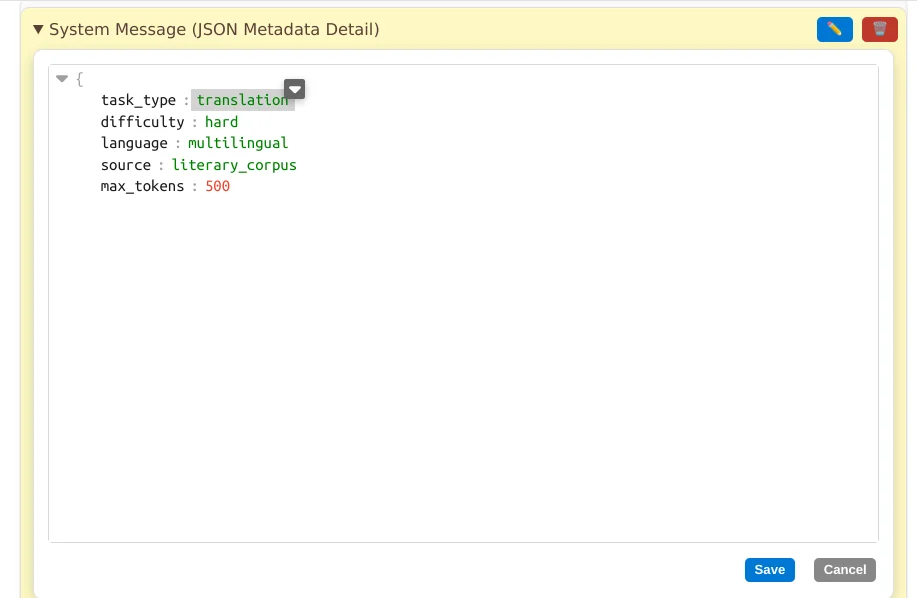
Editing JSON content (Inline): If the message is a JSON object, the hover menu offers an Edit icon (✏️) that launches a visual JSON tree editor directly inside the chat bubble.
- Hover over a JSON-parsed message and click on the Edit icon (✏️).
- A visual tree editor will open directly inside the bubble.
- Click values to edit, or use arrows to expand/collapse structures.
-
Editing Action, Tool Call, Tool Result, & Multi-Part Messages (Inline): Hovering over any structural or multi-part message block (an Action, Tool Call, Tool Result, or complex multi-part content list - whether Anthropic-style blocks or Gemini-style
parts) reveals the Edit icon (✏️). Clicking it opens the visual JSON tree editor populated with the entire raw message JSON object, allowing you to inspect and modify all parameters (likeid,name,input/arguments,content, or custom metadata keys) cleanly and safely.
How Editing Works in Chat Mode:
- Plain Text: You edit normally. Escaping (like
\") is added for you when saving. - Valid JSON: You use the Tree Editor. It handles all structural requirements.
- Action/Tool/Multi-Part: These structural/complex messages (including actions, tool requests, tool returns, and multi-part lists) are edited as their entire raw message object directly in the JSON Tree Editor, giving you complete, precise control over their structural fields without breaking the schema format.
- Broken JSON: You edit the Raw Text. You must manually type
\"for quotes. If your edit breaks the line's overall structure, the app will block the save to protect your dataset.
-
Inserting and Appending Messages:
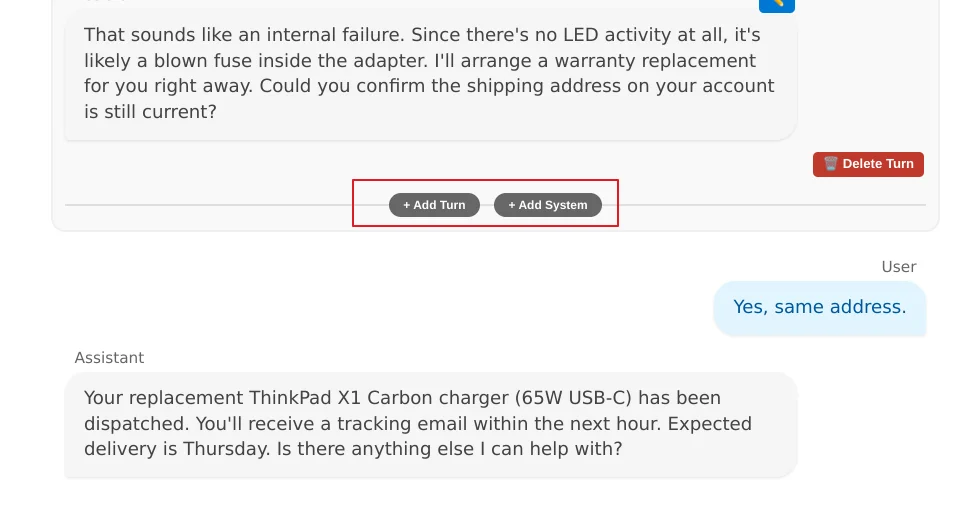
- To Insert: Hover over any message turn (either a system message, or a combination of user/assistant message). An Insertion Line will appear with buttons to + Add Turn or + Add System.
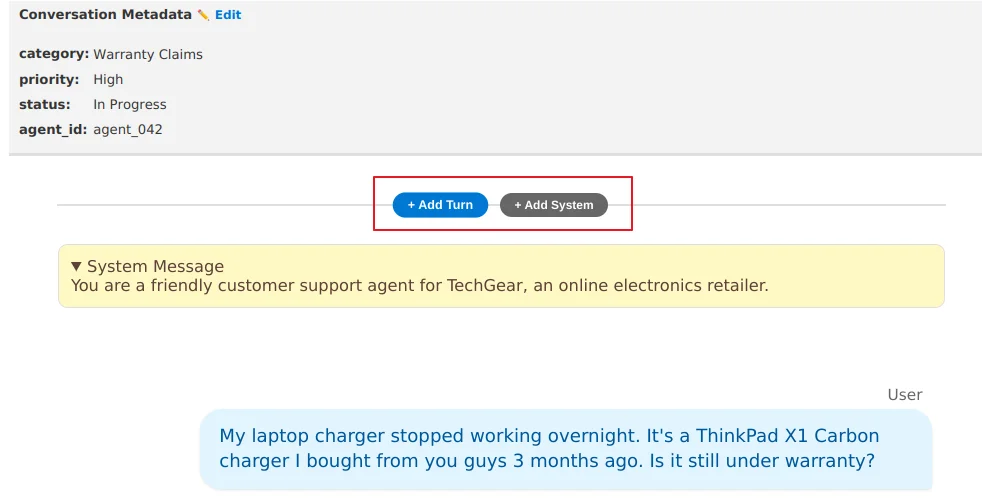
- To Append to the Top: Scroll to the very top of the chat view to find the initial insertion line.
Text View
Displays the text of the current conversation on disk. This mode features a dual-toggle bar for switching between its two sub-modes:
- Sub-mode: Raw: Displays the exact, raw JSONL string as it exists in the file. Best for precise, line-by-line syntactical debugging.
- Sub-mode: Pretty-print: Automatically reformats the JSON with proper indentation and syntax highlighting for much better readability.
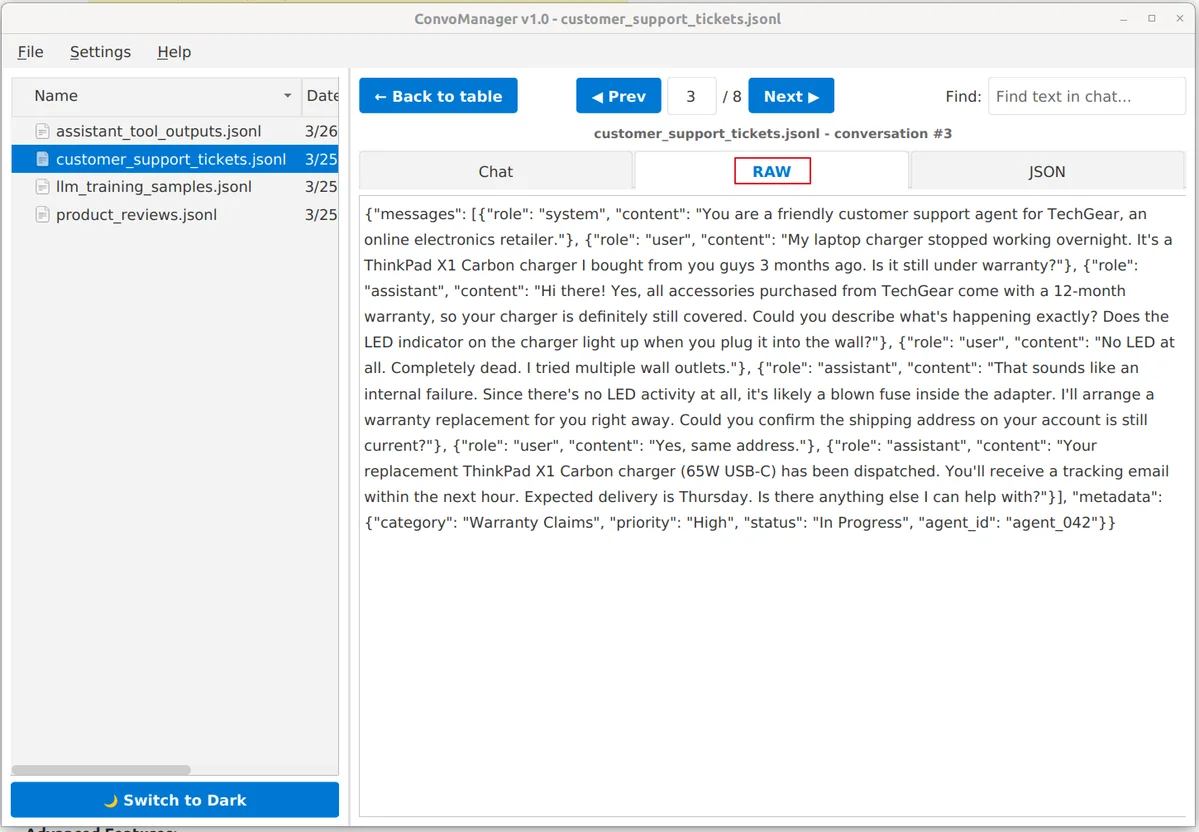
Features:
- Syntax Highlighting: In Pretty-print mode, the editor uses color-coding to make the JSON structure easy to follow.
- Live Error Detection: As you type, the editor validates your JSON syntax. If an issue is found, a clear error message appears below the editor pinpointing the exact line and column where the syntax is broken.
- Automatic Compacting: Edits made in Pretty-print mode are automatically compacted back into a single-line JSONL format when you save to ensure file compatibility.
- When to use: Use this for quick structural fixes or visual inspection of raw strings where the visual tree editor might be too abstract.
- Editing: You can type directly into the editor. A
Savebutton and aRevertbutton will appear when you make changes.
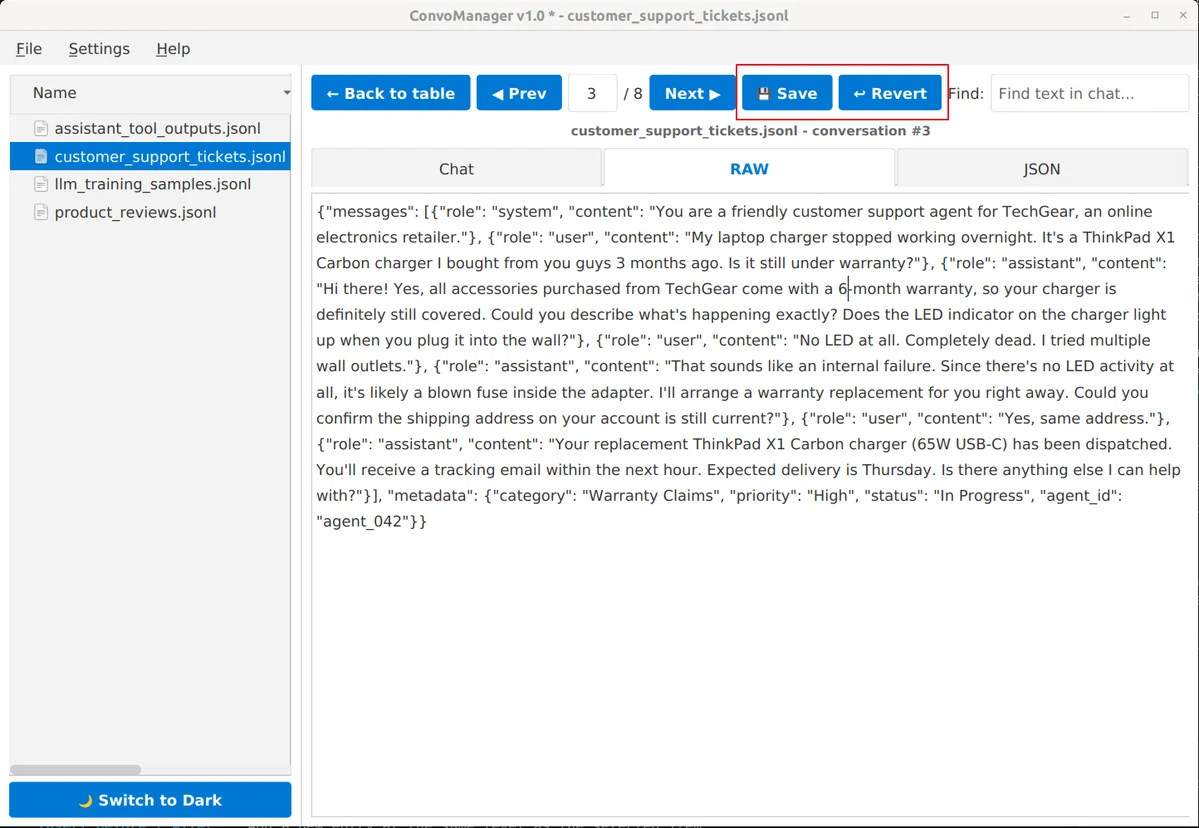
Precision Editing in TEXT Mode:
- Raw Sub-mode: Shows the exact bytes on disk. Every
\"and\nis visible and editable. - Pretty-print Sub-mode: Displays a formatted view. The app automatically re-escapes and collapses the JSON when you save.
The app validates your JSON syntax in real-time before saving to prevent file corruption.
JSON View
An industrial-grade tree editor for manipulating the entire JSON tree structure of the conversation object (including root properties, message arrays, and metadata definitions) as a collapsible, color-coded structure for deep structural editing.
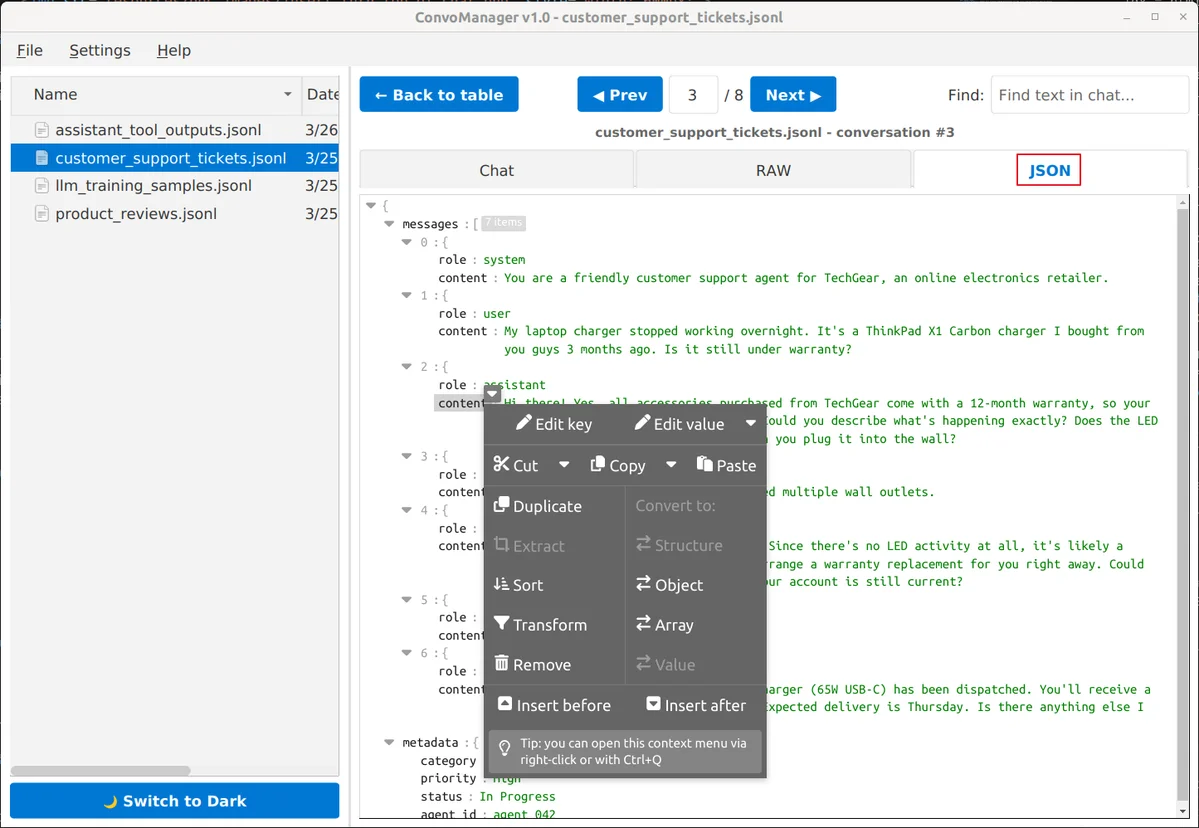
Right-click any key or value to open the structural context menu:
- Edit Key / Edit Value: Rename fields or change individual values directly.
- Insert Before / After: Add a new entry at the same level as the selected item.
- Convert To: Instantly switch a value's type (e.g., change a
Stringto anObjectorArray). - Duplicate / Remove: Efficiently clone or delete entire sections of the conversation.
- Transform: Apply powerful JMESPath queries to filter or reshape the data.
- Extract: Focus the editor on a specific nested object or array.
- Sort / Reverse: Reorder keys in an object or items in a list.
Advanced Features:
- Undo / Redo: Every action can be reversed with standard shortcuts (CTRL+Z).
- Drag & Drop: You can drag keys or items to move them within the structure.
5. Settings, Updates & Maintenance
- Global Settings & Cache: Open
File > Settingsto configure validation engines, metadata columns, and manage the persistent index cache.- Clearing the indexing cache: If you experience issues or just want to free up space, you can clear the app's internal maps via the "Cache" tab in Settings. The app will re-index your files the next time you open them.
- Theme Management: Toggle between Dark and Light mode via the toggle button at the bottom of the File Browser.
- Checking for Updates:
- Automatic Checks: Enable "Automatically check for updates on startup" in the Settings dialog (
File > Settings > Updates) to let the app query for updates in the background. Toggling this setting on immediately triggers an update check. - Manual Checks: Go to
Help > Check for Updates...at any time to manually check if you are running the latest version. If an update is available, you can choose to open the download page directly from the popup.
- Automatic Checks: Enable "Automatically check for updates on startup" in the Settings dialog (
6. About
ConvoManager is proudly developed and maintained by RedhotCoding.